
Catch 90% of Errors When Building AutoCAD Dynamic Blocks for Architects


An AutoCAD dynamic block is a single block definition with built-in parameters and actions that let you stretch, flip, rotate, or reconfigure it after insertion. That means one door block replaces ten static variants, one desk block covers every size on your furniture layer, and your drawings stay consistent because every instance updates from the same source geometry.
TL;DR:
Dynamic blocks can significantly reduce the number of static blocks needed by handling multiple sizes and configurations through parameters and actions.
Creating effective dynamic blocks requires careful planning of geometry, linking parameters with appropriate actions, and testing incrementally to catch errors early.
Pairing the correct parameters with their actions, such as linear with stretch or flip with flip actions, ensures predictable behavior and avoids misconfiguration.
Constraints add parametric relationships but require full AutoCAD for authoring; in AutoCAD LT, similar behavior can be achieved with standard parameters.
Keeping dynamic block libraries simple, testing thoroughly before sharing, and updating blocks through a structured workflow help maintain performance and consistency.
Table of Contents
What Can Dynamic Blocks Actually Do?
Before you open the Block Editor, it helps to know what you’re building toward. Dynamic blocks handle a specific set of behaviors, and once you recognize the pattern, you’ll spot dozens of static blocks in your library that are begging for an upgrade.
The core behaviors show up in nearly every architectural drawing:
Stretch — resize a door, window, or desk along one axis without redrawing it
Flip — mirror a block for left/right handing, like swing direction on a door
Rotate — spin an object like a callout arrow or equipment symbol
Visibility states — show or hide geometry to represent different configurations in one block
Lookup lists — snap dimensions to standard sizes instead of free-form numbers
Alignment — auto-rotate a block to match the angle of a wall or edge it’s inserted against
A good rule of thumb: if you’ve got multiple nearly identical static blocks doing the same job at different sizes, that’s your signal to consolidate. One caveat worth knowing early: grip editing on finished dynamic blocks works fine in AutoCAD LT, but authoring new constraints requires full AutoCAD, a distinction covered in detail further down.
How Do You Create a Dynamic Block Step by Step?
Autodesk’s own documentation lays out a recommended authoring workflow: plan your content, build the geometry, add constraints if needed, add parameters, add actions, define custom properties, test the block, then save. Here’s how that plays out with a variable-width door as your example.
Plan the geometry first. Decide what stretches (the door leaf and frame width) and what stays fixed (hinge point, swing arc). Sketch it on paper if you have to. Skipping this step is where most dynamic blocks go wrong.
Draw the geometry and open the Block Editor. Create your door leaf, frame, and swing arc as regular objects, then launch BEDIT and set an insertion base point at the hinge corner, since every stretch and flip will reference that point.
Add a Linear parameter along the door width. Place grips at each end of the opening.
Link a Stretch action to that parameter. When you define the stretch frame, only enclose the geometry that should actually move, the leaf edge and frame line, not the hinge or swing arc.
Add a Flip parameter and action to handle left/right swing without drawing a mirrored duplicate.
Add a Lookup parameter if you want the width to snap to standard sizes (30", 32", 36") instead of accepting any number a user types.
Run Test Block after every major addition, not just at the end. This single habit catches 90% of authoring mistakes before they compound.
Save and close once the block behaves correctly through a full range of stretches and flips.
This incremental approach, building one feature and testing before adding the next, is exactly what Autodesk recommends for saving real time on repetitive drafting tasks.
Which Parameters and Actions Should You Pair Together?
Each parameter type exists to solve a specific editing problem, and pairing the wrong action to it is the most common reason a block misbehaves.
Linear + Stretch — the workhorse combination for resizing doors, desks, and panels along one direction
Polar + Move or Stretch — moves or resizes geometry along an angle, useful for angled callouts or diagonal bracing
Rotation + Rotate action — spins a block around a base point, ideal for arrows, equipment symbols, or north arrows
Flip + Flip action — mirrors geometry across a line, the standard fix for door handing and furniture orientation
Visibility parameter — swaps between configurations of the same block without extra actions at all
Lookup + Lookup action — ties a visible property to a table of preset values rather than open numeric entry
Point parameter — repositions a single feature, like moving a hardware detail within a larger assembly
Selection sets matter as much as the parameter type. When you define a stretch frame or a move selection, only the geometry inside that frame moves, so a too-generous selection drags objects you meant to keep fixed. Reach for Lookup whenever a dimension needs to match an industry standard; save free numeric entry for details that genuinely vary case by case.
Do Constraints Work the Same Way in AutoCAD LT?
Geometric and dimensional constraints add a layer parameters alone can’t: true parametric relationships and formulas, so one dimension can drive another automatically. The catch is authoring. The tools to define new constraints exist only in full AutoCAD, not AutoCAD LT, though a block someone else built with constraints in full AutoCAD will still work correctly once inserted in LT. If your team is LT only, either author constrained blocks in a full AutoCAD seat first, or build the equivalent behavior with standard parameters and actions instead. Our geometric constraints guide breaks down how these relationships differ from basic parameters if you want the deeper mechanics.
Why Do Dynamic Blocks Break, and How Do You Fix Them?
Most authoring failures trace back to one of three causes, and all three show up fast if you test as you go rather than at the end.
A yellow exclamation icon appears on a parameter. That means the parameter has no linked action, and it’s the single most common authoring mistake. Click the parameter, then use Add Action or right-click to link it properly.
The stretch or move affects the wrong geometry. Reopen the action and redefine its selection set, since an oversized selection frame is usually the culprit.
Grips appear in the wrong spot or units look off. Check your insertion base point and drawing units. A block built in millimeters behaves unpredictably when inserted into a feet-and-inches template.
Before saving and distributing anything, run through a short checklist: test every parameter’s full range, confirm flips and rotations don’t distort fixed geometry, and verify lookup values match your office standard.
Pro Tip: To keep a label or tag centered while a linear dimension stretches, add a Move action to that same linear parameter and set its distance multiplier to 0.5. The label travels half the distance the geometry moves, staying centered without a separate constraint.
Which Dynamic Block Recipes Should You Build First?
A handful of block types cover most of what shows up in architectural drawing sets, and each follows a repeatable pattern:
Doors — Linear parameter with a Stretch action for width, a Lookup list for standard sizes (30", 32", 36"), and a Flip parameter for handing
Windows — Visibility states to switch between frame configurations, plus alignment so the block auto-rotates to match the wall it’s inserted on
Furniture — a length Stretch paired with Lookup values locked to your office’s standard desk and table sizes
Callouts — a Rotation parameter on the arrow geometry while keeping the text label unrotated, so labels stay readable regardless of orientation
These four cover the majority of repetitive static-block replacements you’ll find in any AutoCAD block library.
How Do You Keep a Dynamic Block Library Fast and Maintainable?
Performance problems in dynamic blocks almost always come from over-engineering, not from AutoCAD’s limits. A block with a dozen chained actions and three visibility states nested inside each other is hard to debug and slow to edit.
Add one parameter at a time and test before adding the next
Name parameters and visibility states descriptively (Width_36in, not State1)
Use Lookup lists for anything tied to a standard, and leave a note or annotation inside the block explaining its intended use
Test every new or updated block inside your actual template file, not just a blank drawing, before adding it to a shared library
Pro Tip: Keep a “test drawing” separate from your production template. Insert every new block there first and run it through its full range of configurations before it ever touches a live project file.
What’s the Best Way to Update and Redistribute a Block?
Edit the block through BEDIT, run Test Block until every configuration checks out, then save the definition and push it out through whatever channel your office already uses to share standards. Tool palettes, a shared DWG block library on a server, or an updated template file all work, and the right choice depends on how your team already collaborates.

Whichever method you use, insert the updated block into a real project drawing before calling it done. Verify grips, stretch limits, and units all behave the same way they did in your test file, since a block that works perfectly in isolation can still misfire against a different drawing’s unit settings or annotation scale.
S15Studio’s Approach to Teaching Dynamic Blocks
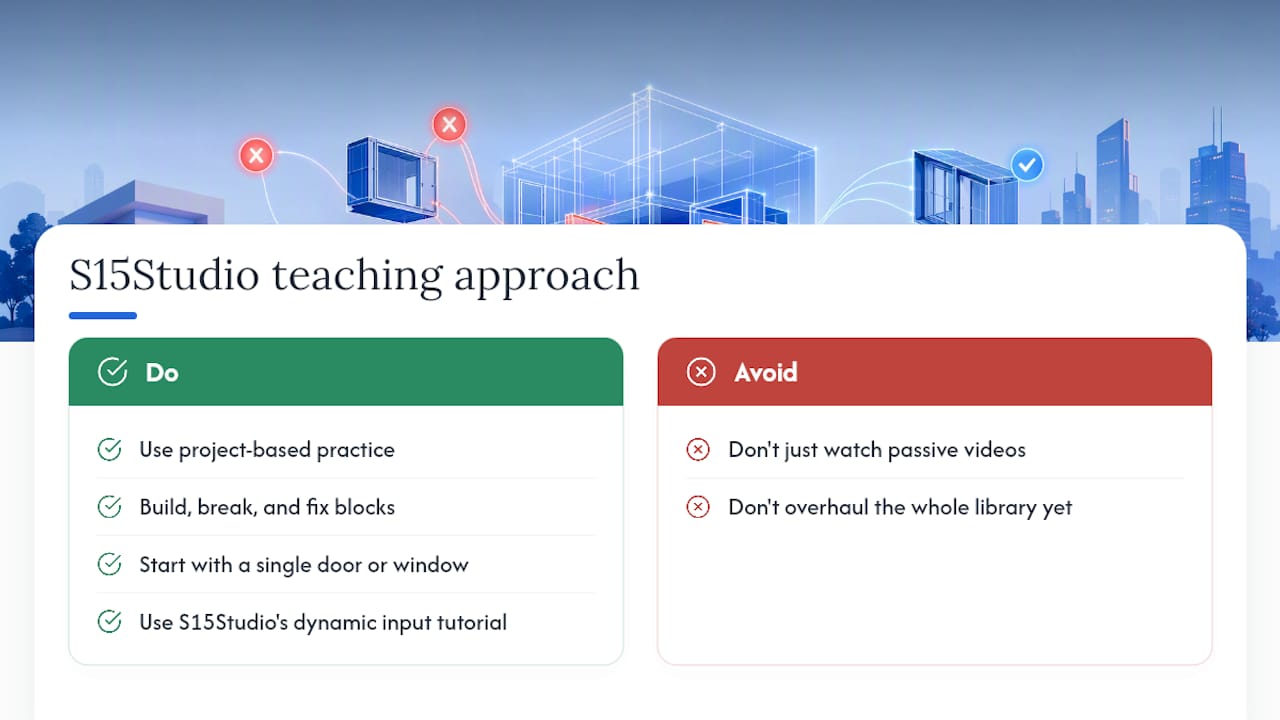
Courses available on the platform are designed around project-based practice rather than passive video watching. That matters for a skill like dynamic block authoring, where the only way to really learn it is to build something, break it, and fix it.
Start with a small practice project, a single door or window block, before attempting a library-wide overhaul. S15Studio’s dynamic input tutorial is a useful companion exercise for building the input habits that make block editing faster once you’re inside BEDIT.
What Most Tutorials Get Wrong About Dynamic Blocks
Most dynamic block tutorials front-load complexity. They show you a block with six parameters, four visibility states, and nested lookup tables in the first ten minutes, and readers walk away convinced this is advanced, specialized work reserved for BIM managers. It isn’t. The actual skill is narrow: understand parameter and action pairing, and test after every single change.
Where conventional advice really falls short is on testing cadence. Most guides mention Test Block once, near the end, as a final check. That’s backwards. Testing after each addition is what turns a frustrating debugging session into a five-minute fix, because you know exactly which change broke the block. Wait until the end and you’re hunting through a dozen parameters trying to isolate one bad selection set.
If you take one thing from this, prioritize planning your geometry and grip behavior before you touch the Block Editor at all. A clear idea of what should move, what should stay fixed, and what the end user actually needs to adjust will save you more time than any advanced parameter trick. Complexity should be earned one tested feature at a time, not designed in from the start.
— Steve
Ready to Build Dynamic Blocks With Guided Practice?
Reading a workflow gets you started, but authoring your first working stretch action, debugging a stubborn selection set, and building a lookup table that actually holds up in a live project takes repetition and feedback. S15studio’s AutoCAD training is built around exactly that: project-based exercises, downloadable templates, and direct trainer support from Steve Fagan, an Autodesk Certified Trainer, so you’re not troubleshooting a broken block alone at midnight.

The course walks through block authoring alongside the rest of the AutoCAD skill set, from drafting fundamentals through advanced parametric tools, with practice projects you keep for lifetime reference. If you’re ready to move past tutorials and start building blocks that hold up in real project drawings, check out the full AutoCAD course and get started on your first guided exercise today.
Sources
Recommended
Comments