
AutoCAD Quick Select Filtering: The Fastest Way to Select


QSELECT (type QSELECT or right-click → Quick Select) creates a selection set by filtering objects by type and property, so you can edit hundreds of matching items in one step instead of clicking each one. It replaces slow manual selection with a dialog box that asks what kind of object you want and what property it must match.
Here’s what that looks like in practice:
You need every circle with a 6.00 diameter changed to a new layer.
Run QSELECT, set Object Type to Circle, Properties to Diameter, Operator to “= Equals,” Value to 6.00, and click OK.
AutoCAD builds the selection set instantly, and you apply your layer change to every match at once.
That’s the entire mechanic behind AutoCAD quick select filtering: object type plus property plus value equals a targeted, editable set of objects.
Key Takeaways
AutoCAD quick select filtering works by matching object type and property values to instantly build editable selection sets, replacing manual click-by-click selection.
Point | Details |
Run QSELECT correctly | Type QSELECT or right-click, then set Apply To, Object Type, Property, Operator, and Value. |
Match tool to task | Use Select Similar for one property, Quick Select for multi-property single-type filters, and FILTER for saved multi-criteria queries. |
Watch for nested blocks | QSELECT cannot see inside nested blocks, so explode or use manual selection for those cases. |
Build compound sets with Append | Run QSELECT twice with Append checked to combine two different filter criteria into one set. |
Learn it inside a structured course | S15Studio’s Mastering AutoCAD course teaches selection filtering as part of a full drafting workflow, with project-based drills and exam prep. |
Table of Contents
How Do You Run Quick Select Filtering in AutoCAD?
Quick Select is one of several AutoCAD selection tools, but it’s the one built specifically for filtering by property rather than by location on screen. The command creates a selection set by filtering objects based on object type and properties, and it can apply to the whole drawing or just what you’ve already selected.
Open the dialog by typing QSELECT, or right-click in empty drawing space and choose Quick Select from the context menu.
Set Apply To: choose “Entire drawing” to search everything, or “Current selection” if you’ve already pre-picked a rough set of objects.
Check Append to Current Selection Set if you want this new filter added to objects you’ve already isolated, rather than replacing them.
Pick your Object Type (Circle, Text, Polyline, Block Reference, and so on).
Choose the Properties field relevant to that object type, such as Layer, Color, Diameter, or Text Style.
Set the Operator (Equals, Not Equal, Greater Than, Less Than, or Wildcard Match) and enter the Value.
Select Include in new selection set or Exclude from new selection set, then click OK.
Once you’re back at a command’s Select Objects prompt, type P for Previous to reload that exact selection set without rebuilding it. This works because Quick Select generates a usable set at that prompt, which saves real time on repetitive edits.
Pro Tip: Run QSELECT with nothing pre-selected first. It shows you every object type present in the drawing, which is a fast way to audit what’s actually in a file before you touch anything.
Should You Use Select Similar, Quick Select, or FILTER?
Design professionals waste time when they default to the same selection tool for every job. Match the tool to the complexity of the criteria instead.
Select Similar is the fastest option for a single property on a single object type. Right-click a wall layer, choose Select Similar, and you’re done in one click. It’s built for on-the-fly matching, not multi-property queries.
Quick Select wins when you need one object type filtered by a specific property value you don’t already have isolated on screen, like every circle at a given diameter or every text object using a particular style.
FILTER is the right call once you’re stacking multiple conditions (color plus layer plus diameter, for example) or you want to reuse the same query across several drawings. CADTutor frames FILTER as the tool for saved, repeatable, multi-criteria selections, while QSELECT stays a simpler, faster alternative for one-off jobs.
The decision rule is simple: single property, use Select Similar. Multiple properties on one object type, use Quick Select. Multiple conditions you’ll reuse, use FILTER.
What Are the Limitations of AutoCAD Quick Select?
Quick Select is powerful, but it has real edges you need to know before you trust it on a big drawing.
Nested blocks are invisible to it. QSELECT does not select nested blocks, meaning objects buried inside a block within a block won’t show up in your filter results. You’ll need to explode the outer block temporarily or dig in with a manual method. Our breakdown of groups versus blocks covers why nesting behaves this way.
Custom object properties depend on the source application. If a drawing contains objects created by a third-party plugin, that plugin’s host app generally needs to be running for Quick Select to read its custom properties correctly.
Wildcard Match is your friend for text. Use it on text or attribute values when you only know part of a string, like matching every note that starts with “REV” regardless of what follows.
Append builds compound sets. Run QSELECT once, check Append, then run it again with different criteria to stack multiple filters into one selection without starting over.
Very large drawings slow down. Filtering across tens of thousands of objects in a single pass takes noticeably longer, especially with Apply To set to Entire drawing.
Quick Select doesn’t cap how many objects it can filter, but every additional property check adds processing overhead. On a drawing with a heavy proxy-object count, that overhead becomes noticeable fast.
What Are Some Practical Quick Select Recipes?
These are the filters you’ll actually reach for on a normal week of drafting. Each one takes under a minute once you know the sequence.
Resize a batch of circles. Run QSELECT, set Object Type to Circle, Properties to Diameter, Operator to Equals, Value to 6.00, click OK, then apply your edit (layer change, scale, or property update) to the whole batch at once.
Fix mismatched text styles. Set Object Type to Mtext, Properties to Style, choose the offending style name, and swap every instance to the correct font or height in one pass.
Clean up proxy objects. Frank Mayfield’s Autodesk blog post on Quick Select points to this exact use case: filtering for proxy objects left behind by third-party apps or older file versions, then deleting them to shrink file size and speed up regeneration.
Find open polylines. Set Object Type to Polyline, Properties to Closed, Value to No, and you’ll isolate every polyline that isn’t closed. This catches boundary errors before they break a hatch or area calculation.
Pro Tip: Before deleting anything filtered as a proxy object, isolate the set and review it visually first. Some proxy geometry carries data other objects reference, so a blind delete can break more than it fixes.
When Do You Need FILTER, AutoLISP, or .NET Instead?
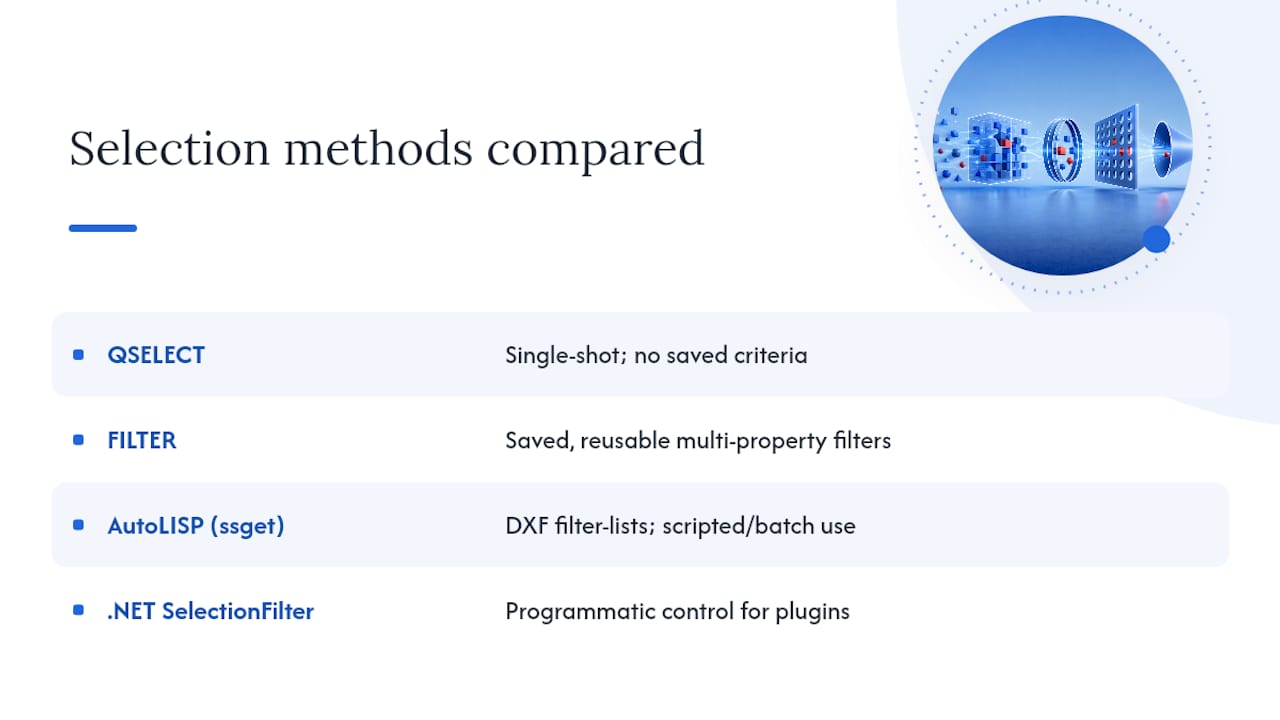
Quick Select is a single-shot tool. It doesn’t save your criteria for next time, and it can’t chain more than one object type through a single filter path. Once your selection needs repeat across drawings or projects, move up the stack.
The FILTER command builds saved, multi-property filters you can reuse mid-command, and it stays transparent enough for anyone on a team to open and understand later. For scripted or batch work, AutoLISP’s ssget function accepts a filter-list built from DXF group codes along with sel-method flags like X (entire drawing), W (window), C (crossing), and P (previous), letting you write a routine that filters and acts in one pass. Developers building plugins reach for .NET’s SelectionFilter and PromptSelectionOptions classes to control selection behavior programmatically inside custom tools.
Script a filter only when you’re running the same query across many drawings or as part of an automated batch job. A one-off selection doesn’t need code. It needs thirty seconds in the Quick Select dialog.
If you’re already exporting filtered data for schedules or takeoffs, this pairs naturally with data extraction workflows, since a clean selection set is usually the first step in that process.
What Should You Practice to Master This Skill?
Steve Fagan, an Autodesk Certified Trainer and founder of S15Studio, built these drills from the mistakes he sees most often in AutoCAD training sessions. Run each one in 10 to 20 minutes:
Proxy cleanup drill: open a drawing with third-party geometry, filter for proxy objects, isolate, review, then delete.
Diameter edit drill: filter circles by exact diameter and batch-update their layer or linetype.
Compound selection drill: use Append twice to combine a layer filter with a color filter into one working set.
For structured practice beyond these drills, S15Studio’s ribbon interface guide and the Mastering AutoCAD course cover selection workflows in depth.
Why Copyable Recipes Beat Abstract Selection Theory
Most AutoCAD tutorials explain what Quick Select’s dialog fields mean and stop there. That’s backwards. The dialog is self-explanatory the first time you open it. What isn’t obvious is which filter to reach for on a Tuesday afternoon when a client just sent back a revision with forty circles at the wrong diameter.

The conventional advice treats FILTER and AutoLISP as the “advanced” path everyone should eventually learn. In practice, most drafters never need them, and pushing beginners toward scripting too early just adds friction to a job that Quick Select already handles in under a minute. Complexity should follow need, not the other way around.
What actually separates efficient drafters from everyone else is knowing the limitations cold, especially the nested block gap, so they don’t waste twenty minutes wondering why a filter missed half the objects it should have caught. Learn the failure modes before you trust the tool on a deadline. That’s the part tutorials skip, and it’s the part that costs real time when you find out the hard way.
— Steve
Ready to Build Real AutoCAD Speed?
If you’ve made it this far, you already know Quick Select filtering is one piece of a much bigger workflow puzzle, and piecing that puzzle together from scattered blog posts is slower than learning it once, in order. Mastering AutoCAD: The Ultimate Guide from Beginner walks through selection sets, filtering, layer management, and drawing cleanup as one connected skill set instead of isolated tricks.

The course covers project-based practice drawn from real drafting scenarios, Autodesk Certified User exam prep, and downloadable PDF notes you keep permanently. You also get direct access to trainer support if a workflow doesn’t click on the first pass. If you want a broader path that pairs AutoCAD with Revit, the complete Revit and AutoCAD training bundle covers both. Start with the first lesson of the AutoCAD course and see how the selection module fits into the rest of your drafting routine.
Where to Learn More About AutoCAD Selection Tools
For further reading straight from the source, these documents cover the mechanics in full detail:
Quick Select dialog box options — Autodesk’s own field-by-field breakdown.
Advanced selection techniques — CADTutor’s guide to FILTER and compound selection sets.
Quick Select Tuesday Tips — Autodesk’s blog on practical cleanup use cases.
Getting Started with AutoCAD — S15Studio’s foundational workflow guide.
Sources
Recommended
Comments