
32GB RAM, 8GB GPU: What Professionals Should Buy for AutoCAD 2026

If your machine hits a 3+ GHz base clock, 32 GB of RAM, and a GPU with 8 GB of VRAM running a certified driver, you’re set for AutoCAD 2026 on Windows. The official minimum is much lower: 2.5 GHz, 8 GB of RAM, and a 2 GB card. AutoCAD LT needs less across the board, while point clouds, large assemblies, and 3D-heavy BIM work push well past even the recommended tier.
TL;DR:
Professionals should aim for at least 32 GB of RAM and an 8 GB VRAM GPU to handle multiple applications and complex models effectively.
CPU performance depends more on turbo clock speeds than core count, making high-turbo processors preferable for real-time drafting and editing tasks.
Large projects involving point clouds, Civil 3D corridors, or BIM models require 64 GB of RAM, high VRAM GPUs, and NVMe SSDs for optimal performance.
Ensure the operating system is Windows 10 or 11 64-bit, with the correct .NET runtime installed, and drivers sourced from certified GPU vendor lists.
Match monitor resolution and GPU capability carefully, especially when using 4K displays, to avoid laggy pan and zoom in multitasking CAD workflows.
Table of Contents
Official AutoCAD 2026 System Requirements for Windows
Autodesk publishes two tiers for every spec: a basic floor that lets the software launch, and a recommended tier that lets you actually work in it. The gap between the two is bigger than most buyers expect.
Operating system: 64-bit Windows 10 or Windows 11 only. Once Microsoft ends support for a given Windows version, running AutoCAD on it becomes a security and compatibility risk even if the software technically still installs.
.NET runtime: AutoCAD 2026 through version 2026.1.1 requires .NET 8.0; version 2026.1.2 and later moves to .NET 10.0. The installer detects a missing runtime and installs it automatically, but IT teams imaging machines ahead of time should stage the correct version.
Processor: Basic tier calls for 2.5 to 2.9 GHz with 8 logical cores; recommended tier wants 3+ GHz base and 4+ GHz turbo.
Memory: Basic is 8 GB, recommended is 32 GB. AutoCAD LT tops out at a 16 GB recommendation since it skips heavy 3D modeling.
Display card: Basic tier is 2 GB of VRAM with 29 GB/s bandwidth; recommended is 8 GB with 106 GB/s bandwidth, running at DirectX 11 feature level or higher.
Disk space: Roughly 10 GB for the install footprint, with Autodesk suggesting an SSD rather than a spinning drive for load times and file operations.
Those numbers describe what runs, not what performs well on a real project.
What Professionals Should Actually Buy, Not the Bare Minimum
Treat Autodesk’s “recommended” column as your starting point, not your ceiling. Buying to the minimum spec is how firms end up replacing laptops eighteen months in.
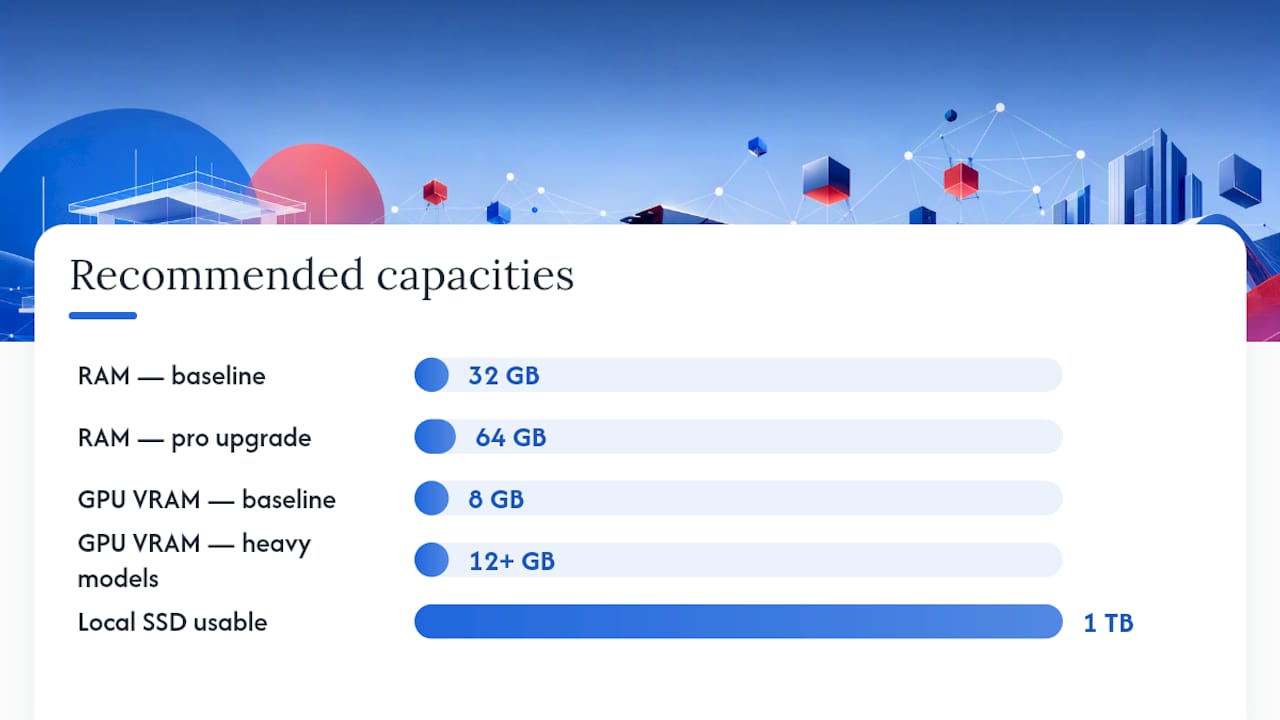
Thirty-two gigs of RAM and an 8 GB GPU are the realistic baseline once you factor in what’s actually running alongside AutoCAD: a browser with two dozen tabs, PDF markup tools, email, and often a second CAD session for reference. Buying guides built for CAD workflows treat the recommended memory figure as a professional’s floor, not an aspiration.
CPU choice matters more than most spec sheets suggest. Benchmark testing on 2026-era hardware shows AutoCAD stays largely frequency-bound: a CPU with a higher single-core turbo clock will outrun a chip with more cores but lower peak frequency on everyday drafting tasks. Look for high-turbo Intel Core Ultra or Ryzen 9 class processors rather than chasing core count alone.
Step up to 64 GB of RAM and 12 GB+ of VRAM if you regularly open large point clouds, complex Civil 3D corridors, or multi-discipline BIM models with heavy external references.
Choose an NVMe SSD on PCIe 3.0 or 4.0, with at least 1 TB of usable capacity once you account for project archives and cache files.
Don’t buy a laptop based on peak turbo numbers alone; sustained performance under a 30-minute rendering load tells you more than the spec sheet.
Pro Tip: If your reseller quotes the “basic” AutoCAD spec as sufficient for a workstation purchase, walk away from that quote. It’s the number that gets the software to open, not the number that gets a floor plan revised in under a minute.
Specialized Toolsets Need More Than the Base Install
Map 3D, Architecture, MEP, Plant 3D, and Electrical each add their own resource demands on top of the core AutoCAD footprint, and this is where budget estimates go wrong most often.
Expect roughly a substantial amount of additional RAM headroom and 10 to 21 GB of extra disk space depending on which toolset you enable.
Map 3D depends on database connectivity: ODBC drivers, ArcGIS provider components, and in some deployments a SQL Server connection for larger GIS datasets.
AutoCAD Electrical needs the Microsoft Access database engine runtime for its parts libraries, which many IT images skip during standard deployment.
If your team works with large GIS layers or shared project databases, plan separate storage or a dedicated virtual machine rather than routing that traffic through your local project drive.
Picking Your CPU, GPU, RAM, and Storage by Workflow
Component priority for AutoCAD follows a fairly consistent order: CPU single-core performance first, RAM capacity second, GPU VRAM and driver certification third, storage throughput fourth. Buyers who reverse that order, chasing a flashy GPU while skimping on RAM, tend to be disappointed.
2D drafting build. A quad-core or better CPU at 3+ GHz, 16 GB of RAM, and an entry-level dedicated or integrated GPU with 2 to 4 GB of VRAM covers most drafting-only workflows. Avoid budget laptops with soldered 8 GB RAM configurations that can’t be upgraded later.
Mixed CAD and visualization build. Aim for a 6 to 8 core CPU with strong turbo clocks, 32 GB of RAM, and a midrange GPU with 8 GB of VRAM. This tier handles rendering, basic 3D modeling, and multitasking without stutter.
Heavy 3D, BIM, or point-cloud build. Workstation-class GPUs, 64 GB or more of RAM, and NVMe storage in RAID or dual-drive configurations become worthwhile once file sizes and reference loads climb into the tens of gigabytes.
Pro Tip: A thin, ultraportable laptop can list the same core specs as a thicker workstation chassis and still perform worse in practice. Sustained turbo under a real workload, not the number on the spec sheet, is what determines whether your machine slows down an hour into a rendering pass.
Installation and Compatibility Checklist Before You Install
A handful of overlooked settings account for most AutoCAD installation failures.
Confirm you’re on a supported 64-bit Windows 10 or 11 build; older or end-of-life Windows versions can block installation entirely once Microsoft stops issuing security patches.
Check which AutoCAD 2026 update level you’re installing. Anything through 2026.1.1 needs .NET 8.0; 2026.1.2 and later needs .NET 10.0, and the installer will fetch the correct runtime automatically if it’s missing.
Pull graphics drivers from your GPU vendor’s certified list rather than a generic driver package, and roll back to a previous certified version if you see viewport glitches after an update.
For multi-seat office deployments, confirm the Autodesk Network License Manager is reachable on your network before rolling out to individual machines.
Three Sample Builds and a Pre-Install Checklist
Matching your build to your actual project load saves money without sacrificing performance.
Student or light 2D: 16 GB RAM, quad-core CPU at 3+ GHz, 4 GB GPU. Fine for coursework and single-discipline drawings.
Daily professional: 32 GB RAM, high-turbo 6 to 8 core CPU, 8 GB GPU, 1 TB NVMe SSD. Handles multi-sheet projects and moderate 3D work.
Heavy 3D or BIM: A workstation-grade build with very large RAM, high VRAM GPU, and multiple NVMe drives. Built for point clouds and large linked models.
Before installing, update Windows, update your GPU driver, confirm .NET compatibility, back up existing project files, and check SSD health if you’re reusing an older drive.
Minimum Display Resolution Requirements
AutoCAD 2026 requires a minimum resolution of 1920 by 1080 for a standard, comfortable workspace, though the interface will technically render at lower resolutions on older monitors. Multi-monitor setups are fully supported and common among professionals who keep a drawing canvas on one screen and reference sheets or a properties palette on another.
Higher resolutions matter more than most buyers assume. A 4K display gives you sharper line work and more usable palette space, but it also demands more from your GPU, particularly at higher zoom levels with dense hatching or heavy linework. If you’re running a 4K panel, the 8 GB VRAM recommendation stops being optional and starts being necessary just to keep panning and zooming smooth.
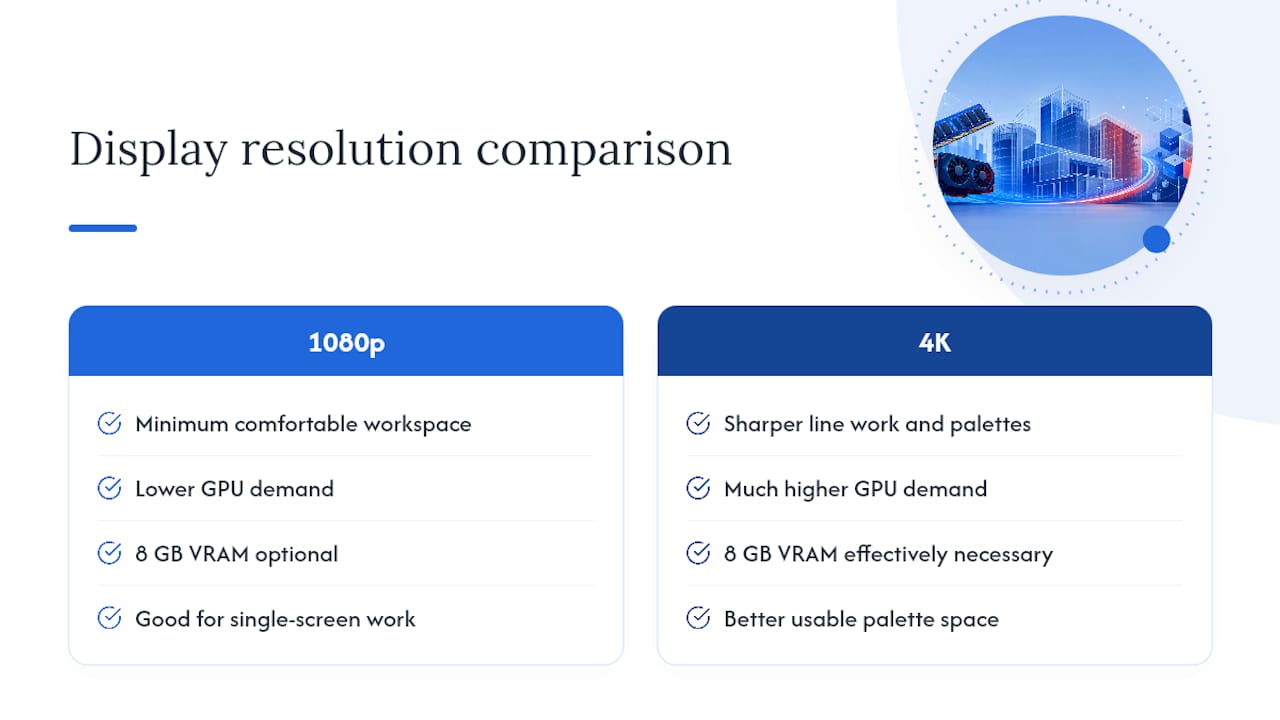
For CAD managers standardizing hardware across a team, matching monitor resolution and GPU capability together avoids a common complaint: users on 4K screens paired with entry-level graphics cards experience laggy pan and zoom, even though the CPU and RAM are more than adequate for the drafting work itself.
Supported Languages and Localization Considerations
AutoCAD 2026 ships in multiple language packs, and Autodesk allows installing additional language packs alongside your primary installation so multinational teams can share files without hunting for translated command sets. Keyboard shortcuts and command aliases generally stay consistent across language versions, which matters if your firm works with international consultants or subcontractors using a different language build.
Localization affects more than menu text. Dimension styles, hatch pattern libraries, and default templates can differ slightly between regional versions, and drawing files that mix content from different localized installs occasionally show font substitution issues if a specific regional font isn’t installed on the receiving machine. Firms working across borders should standardize on a shared template and font set early in a project rather than discovering mismatches at handoff.
If your team occasionally receives files from international offices or consultants, keeping the relevant language pack installed, even as a secondary option, saves time compared to reinstalling or troubleshooting a garbled command line later.
Network and Internet Requirements for Licensing and Updates
AutoCAD 2026 needs an internet connection during initial activation, and Autodesk’s subscription licensing model checks in periodically to confirm your account is current. A single-user subscription typically needs to verify its license within a set window; going too long without connectivity can trigger a lockout until the software can reach Autodesk’s servers again.
Network-licensed deployments, common in firms with a shared pool of seats, route through the Autodesk Network License Manager rather than checking in individually per machine. That server needs a stable connection reachable by every client workstation on the local network, and firewall rules need to allow the specific ports the license manager uses.
Beyond licensing, a working connection matters for automatic updates, cloud-based rendering services, and collaboration features that sync drawings or reference files through Autodesk’s cloud storage. Firms in locations with unreliable connectivity should plan for occasional offline stretches by understanding their subscription’s grace period rather than assuming constant connectivity is guaranteed.
Compatibility Notes for Third-Party Plugins and Add-Ins
Most third-party AutoCAD plugins, from structural rebar tools to MEP takeoff add-ins, publish their own compatibility matrix tied to specific AutoCAD versions and .NET runtime levels. A plugin built against an older .NET target can fail silently or throw a loading error when AutoCAD 2026 moves from .NET 8.0 to .NET 10.0 at version 2026.1.2, which means firms with a heavy plugin stack should hold off on that update until every add-in vendor confirms compatibility.
Rendering plugins and structural analysis add-ins tend to be the most sensitive to GPU driver changes as well, since they often hook directly into the graphics pipeline rather than working through AutoCAD’s standard API layer. If a plugin starts crashing after a Windows or driver update, check the vendor’s release notes before assuming it’s an AutoCAD problem.
Firms running a large plugin ecosystem should test major AutoCAD point releases in a sandboxed environment before rolling them out company wide, since a single incompatible add-in can block an entire team’s workflow until it’s patched or replaced.
Power Management and Battery Recommendations for Laptop Users
AutoCAD on battery power behaves noticeably differently than AutoCAD plugged in. Windows power plans throttle CPU turbo boost aggressively on battery to preserve runtime, which directly undercuts the single-core performance AutoCAD depends on most.
For any serious drafting or 3D session, set your Windows power plan to “Best Performance” or your laptop manufacturer’s equivalent high-performance mode, and plug in whenever possible during active project work. Laptops with dual graphics, an integrated chip alongside a dedicated GPU, sometimes default to the integrated option to save battery, which can silently degrade rendering performance without any error message. Checking your GPU vendor’s control panel to force AutoCAD onto the dedicated card is worth doing once during setup rather than discovering the mismatch mid-project.
Battery health also plays a role in sustained performance. An aging battery can cause a laptop to throttle even while plugged in, since some systems reduce power delivery when battery health drops below a certain threshold. If a previously fast machine starts stuttering during renders, a battery health check is worth running before assuming the hardware itself has failed.
An Autodesk Certified Trainer’s View on Specs vs Reality
Classroom experience reframes these numbers. Students on laptops with soldered 8 GB RAM configurations hit hard walls the moment a browser, PDF viewer, and AutoCAD run together, regardless of what the CPU can do. The single most cost-effective upgrade path is almost never the GPU; it’s RAM headroom. Institutions buying in bulk should standardize on 32 GB minimum, while individual buyers upgrading an older machine often get more mileage from a RAM and SSD swap than a full replacement.
— Steve
Speed Up Your Workflow Once Your Hardware Is Ready
Meeting the hardware spec gets AutoCAD running smoothly. It doesn’t teach you to draft faster, avoid rework, or pass a certification exam, and that gap costs firms more billable hours than an underpowered laptop ever does. S15studio’s Complete Revit and AutoCAD Training program is built around real project files rather than isolated tutorials, so the skills transfer directly to production work the next day.

For architects and technicians who already own capable machines but want to close the gap between “the software runs” and “I work efficiently in it,” the Mastering AutoCAD course walks through the exact workflows that eat time when self-taught: block management, layer standards, and the keyboard-driven habits that separate a fast drafter from a slow one. If you’re pairing AutoCAD with Revit on multi-discipline projects, S15studio’s AutoCAD 2D versus 3D drafting guide is a useful companion read before you enroll. Check the course page for current enrollment details and start with the module that matches where your skills actually are.
Sources
FAQ
Can my PC run AutoCAD 2026?
If it meets the basic tier, 2.5 GHz processor, 8 GB RAM, 2 GB GPU, 64-bit Windows 10 or 11, it will run AutoCAD 2026, but professionals should target the recommended tier of 32 GB RAM and an 8 GB GPU for real production work.
What are the minimum system requirements for AutoCAD 2026?
The official minimums are a 2.5 to 2.9 GHz processor with 8 logical cores, 8 GB of RAM, a 2 GB display card with 29 GB/s bandwidth, roughly 10 GB of disk space, and 64-bit Windows 10 or 11.
What’s different between AutoCAD and AutoCAD LT requirements?
AutoCAD LT’s recommended RAM tops out at 16 GB versus 32 GB for full AutoCAD, and its recommended GPU needs 4 GB of VRAM instead of 8 GB, reflecting the lighter 2D-focused feature set.
Is AutoCAD 2027 better than 2026?
Autodesk hasn’t published system requirements or feature details for a version beyond 2026 at this point, so any comparison would be speculative; the safest approach is to build to the 2026 recommended spec, which should carry forward comfortably into near-term releases.
How much RAM does AutoCAD 2026 actually need for professional work?
Autodesk lists 32 GB as the recommended tier, and that number reflects real multitasking demands, running AutoCAD alongside browsers, PDF tools, and reference applications on an active project.
Recommended
Comments