
Fix Revit Door Schedules for BIM Teams Without Editing Linked Files


A Revit door schedule is a model-driven table that lists every door instance and its parameters, from mark number to fire rating. Build one in seconds through View → Schedules → Schedule/Quantities → Doors, then add the fields your project needs. Getting the setup right the first time saves hours of rework later, because a schedule that isn’t structured correctly will fight you at every revision.
TL;DR:
Linking linked models correctly is essential, as skipping “Include Elements in Links” often causes miscounts and makes filtering by level unreliable.
Using shared parameters like Suite ID in linked files helps maintain filter accuracy when level data is inconsistent across model links.
Grouping schedules by door type simplifies quantity takeoffs, while itemizing each door ensures clear procurement and hardware tracking.
Formatting schedules properly for sheets involves hiding sorting fields, adding headers, and adjusting row striping and column tiling to improve readability.
Establishing standardized schedule templates and testing element inclusion early prevents common setup mistakes and inconsistencies across projects.
Table of Contents
How Do You Create a Door Schedule in Revit?
Creating a door schedule takes minutes, but the choices you make in the first dialog box determine whether it stays useful through construction documents or turns into a mess you have to rebuild.
Go to View → Schedules → Schedule/Quantities, select “Doors” from the category list, and confirm the phase matches the phase you’re documenting.
In the New Schedule dialog, add fields such as Mark, Type, Level, Width, Height, Hardware Set, and Comments. You can reorder or remove these later from the Fields tab.
If your project includes linked models with doors you need to track, check Include Elements in Links before clicking OK. Skipping this step is the single most common reason a schedule shows the wrong door count.
Name the schedule something specific, like “Door Schedule, Level 2,” rather than the generic default. It matters once you have six schedules in the project browser.
Test the schedule on a small sample floor before rolling it out project-wide, so any field or filter mistakes surface early.
Following the Autodesk documentation for this sequence gets you a working schedule fast, but a saved schedule template with your standard fields already loaded gets you a consistent one, which matters more once multiple people are editing the model.
Which Fields and Parameters Belong in a Door Schedule?
Revit separates door data into type parameters (shared by every instance of that door type, like frame material or standard width) and instance parameters (unique to one placed door, like its mark number or a site-specific comment). Mixing these up is where most schedule confusion starts. A width change made at the type level updates every door of that type at once. A note added at the instance level stays on that one door only.
For construction documentation, these columns cover almost every project:
Mark — the unique door tag number, usually instance-based
Level — which floor the door sits on
Width and Height — type parameters unless the project uses custom sizing
Fire Rating — critical for code compliance and often overlooked until permit review
Hardware Set — links the door to its hardware group for procurement
You can also build calculated fields directly in the schedule. A door area field, calculated as Width × Height, takes seconds to set up and gives estimators a quick quantity check without opening a spreadsheet. Openings Studio’s guide to setting up Revit door schedules recommends standardizing these parameters at the family level before you ever open the schedule dialog. This avoids the retrofit headache of adding fields to hundreds of already-placed doors.
Pro Tip: Set your calculated door area field to round to one decimal place. Contractors reading raw Revit output with six decimal places will ask you why, and you won’t have a good answer.
Should You Itemize Every Door or Group by Type?
The Sorting/Grouping tab decides whether your schedule reads like a parts list or a count. Choose primary and secondary sort fields (Level, then Mark, is a common combination) to control the order rows appear.
Itemize every instance when each door needs a unique mark for procurement or hardware tracking. This is standard for most construction door schedules.
Collapse identical rows when you only need quantities, like a rough materials takeoff for a bid. Uncheck “Itemize Every Instance” and Revit rolls matching rows into a count.
Add group headers and footers to break the schedule by level or door type, with blank lines between groups for readability on a printed sheet.
Turn on grand totals so the schedule states the full door count at a glance, which saves someone counting rows manually.
Most practicing teams keep two versions of the same door data: an itemized schedule for the drawing set and a collapsed, grouped version for the quantity surveyor. Both pull from the same model, so neither one goes stale independently.
Why Won’t My Door Schedule Filter Correctly?
Filters combine with AND logic, and Revit’s filtering rules support up to eight criteria stacked together. That’s usually plenty, but two things trip people up constantly: filter text is case-sensitive, and every added criterion narrows the results further rather than broadening them.
Linked models cause a separate headache. Doors pulled in through Include Elements in Links retain the level data from their host file, not your current project. On a repeated typical floor plate, this means every linked door can report the same level, which wrecks any grouping you set up by floor.
Rename each link instance with a distinct RVT Link Name and filter by that name to separate floors without touching the linked file.
Where that’s not enough, add a shared parameter (something like “Suite ID”) inside the linked model itself, so the host schedule can filter on real project logic instead of level data that doesn’t reflect reality.
Hide filter fields you no longer need visible on the Formatting tab, so the printed sheet stays clean while the underlying sort logic keeps working.
Pro Tip: If your links are read-only and you can’t add a shared parameter to them, the RVT Link Name workaround is your fastest fix. It won’t fix the underlying level data, but it filters around the problem reliably.
How Do You Format a Door Schedule for Sheets?
A schedule that looks fine in the model view can look wrong the moment you drop it on a sheet, and formatting is where that gap gets fixed. The ribbon controls header appearance, while Schedule Properties → Formatting governs the data rows underneath.
Hide any field used purely for sorting or filtering, like an internal Suite ID, so it doesn’t clutter the printed table.
Merge header cells if you need to insert a company logo or a note above the column titles.
Turn on row striping for long schedules. It’s a small visual change that makes a fifty-row door list far easier to scan on paper.
Use the split table tool (the circular arrow icons) when a schedule runs too long for one column on a sheet, and it’ll continue in a second column automatically.
Tile your schedule view next to the sheet view before finalizing, since formatting differences sometimes only show up once the schedule is actually placed.
How Do You Export a Door Schedule to Excel?
Export through File → Export → Reports → Schedule, and choose a delimited text format that opens cleanly as CSV in Excel or Google Sheets, per Autodesk’s export documentation.
Name each export with a version and date, since a cost estimator working from an outdated CSV is a real and recurring problem on live projects.
Export only the fields the receiving team actually needs. A quantity surveyor doesn’t need your internal sorting fields cluttering their spreadsheet.
Remember that row striping, merged headers, and any visual formatting stay behind in Revit. What you get is raw data, which is exactly what a takeoff or cost estimate needs anyway.
What Are the Most Common Door Schedule Mistakes?
Most schedule problems trace back to setup shortcuts taken early, not anything wrong with Revit itself. Keeping a schedule template inside your company’s project template file, rather than rebuilding fields from scratch on every job, removes the biggest source of inconsistency between projects and between team members.
Add shared parameters like Hardware Set or Suite ID at the start of a project, not partway through. Retrofitting a parameter onto doors that are already placed across a hundred-door hospital wing is tedious work that a five-minute decision at kickoff would have avoided. S15studio’s walkthrough on schedule workflows covers this template-first approach in more depth.
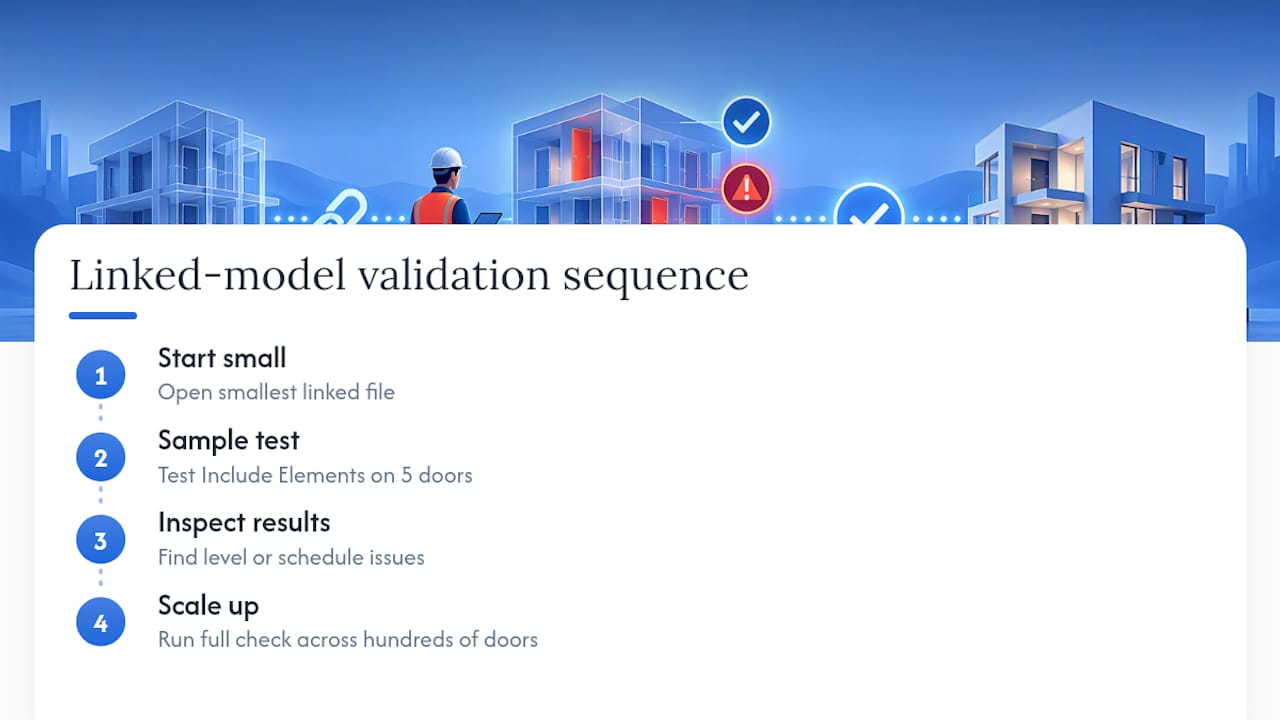
Before handing a schedule to a contractor, tile the schedule and sheet views side by side and test Include Elements in Links on a small sample. Catching a linked-model level problem on five doors is manageable. Catching it on five hundred, after the drawing set has gone out, is not.
Pro Tip: Run your “Include Elements in Links” test on the smallest linked file in your project first, not the largest. You’ll spot the same problems in a fraction of the time.
Trainer note: how we teach door schedules in practice
Teaching this well means putting people in front of a real model with real linked files, not a slide deck. The mistakes we see repeat: mixing up type and instance parameters, then wondering why one hardware change affected forty doors instead of one. Building schedules from a standardized template first, before touching fields, fixes most of it. If you want guided practice instead of trial and error, S15studio’s course library walks through the exact scenarios above.
— Steve
Learn the Full Door Schedule Workflow With S15studio
This course alternative avoids piecing things together from scattered forum threads and trial-and-error model edits, offering exercises built around real project files rather than toy examples. You get the schedule templates, the linked-model workarounds, and the shared-parameter setups covered above, taught step by step instead of discovered the hard way on a live deadline.

The Revit Course Only package, priced at €79 as a one-off purchase, covers scheduling alongside the broader beginner-to-advanced curriculum, with lifetime access to materials and a completion certificate. If your projects lean heavily on linked models across multiple disciplines, the Worksharing Course, at €15, focuses specifically on the collaboration workflows that make linked-model filtering behave predictably. Teams tackling larger, more complex documentation sets should look at the Advanced Course, starting from €79, which builds on schedule automation and template standardization.
Start with the Revit Course Only page to see the full curriculum and pick the module that matches where your schedules currently stand.

Sources
For official detail beyond this guide, see Autodesk’s documentation on creating schedules and linked-model elements, plus the Openings Studio setup guide for practitioner-level field recommendations. For fit-out projects that pair door schedules with contractor documentation, this office design checklist is a useful cross-reference.
FAQ
How Do I Generate a Schedule in Revit?
Go to View → Schedules → Schedule/Quantities, pick a category like Doors, and add the fields you need in the Schedule Properties dialog. From there, use the Sorting/Grouping, Filter, and Formatting tabs to shape how the data displays, following the steps in Autodesk’s schedule creation guide.
What Is a Door and Window Schedule?
It’s a table pulled directly from the Revit model that lists every door or window instance along with parameters like size, type, level, and hardware. Because it’s model-driven, it updates automatically as the design changes, unlike a manually typed schedule drawn in a separate document.
How Do I Extract a Schedule From Revit?
Use File → Export → Reports → Schedule and choose a delimited text or CSV format, which opens directly in Excel or Google Sheets for further data manipulation. Keep in mind that visual formatting like row striping doesn’t carry over, only the raw data.
How Do I Add Doors in Revit?
Doors are placed from the Architecture tab using the Door tool, then hosted onto an existing wall. Once placed, each door automatically becomes an instance in any door schedule you’ve already created, with no extra step needed to register it.
Can S15studio Teach Me Door Scheduling Directly?
Yes. S15studio’s Revit Course Only covers scheduling as part of its project-based curriculum, priced at €79 one-off with lifetime access to materials.
Recommended
Comments