
How to Set Up a Revit Keynote Legend That Actually Works


A working keynote legend needs three things: creating the Keynote Legend view, pointing Revit to a tab-delimited keynote text file through Keynote Settings, and turn on Filter by sheet if you only want entries for that specific drawing. Skip any one of those and you get a blank legend, mismatched key values, or a schedule that dumps every keynote in the project onto one sheet.
Here’s the minimum setup, in order:
Add a Keynote Legend from the View tab or the Project Browser.
Set the keynote source file under Annotate > Keynote > Keynote Settings.
Enable Filter by sheet in the legend’s Properties if the drawing should only show its own tags.
This three-step sequence works because the legend reads live from one external file. Change a value in that file, close and reopen the project, and every legend and tag tied to that key value updates on its own. No hunting through sheets to fix text by hand.
Key Takeaways
A reliable keynote legend depends on three things working together: the legend view itself, a properly formatted and encoded source file, and model-linked keynote types over manual entries.
Point | Details |
Three-step minimum setup | Create the legend, link the tab-delimited keynote file, and enable Filter by sheet for sheet-specific entries. |
File encoding controls reliability | Save the keynote text file as UTF-8 or ANSI correctly, or Revit may fail to read it or garble special characters. |
Prioritize model-linked keynotes | Element and Material keynotes update automatically with the model; User keynotes require manual upkeep and invite errors. |
Test before distributing | Reload edits in a blank project first to catch formatting or encoding issues before they hit live sheets. |
Structured training accelerates mastery | S15studio’s Revit courses walk through keynote setup, family parameters, and worksharing practices with real project files. |
Table of Contents
Revit Keynote Legend Setup: Creating the View Step by Step
Two paths get you to the same place. Go to the View tab, open the Legends dropdown in the Create panel, and select Keynote Legend. Or right-click Legends in the Project Browser and choose New Keynote Legend. Either way, Revit opens a dialog asking for a name and default fields, typically Key Value and Keynote Text.
Name it something specific, not “Keynote Legend 1.” A project with multiple disciplines or phases benefits from names like “Keynote Legend, Level 2 Interiors” so nobody grabs the wrong schedule later.
Once created, the legend behaves like any other schedule with tabs for Filter, Sorting/Grouping, Formatting, and Appearance. Placing it on a sheet is drag-and-drop from the Project Browser, but before you call the setup done, run through this checklist:
Confirm the legend isn’t blank, an empty legend usually means no keynotes have been placed in the model yet, not a setup error.
Check that Key Value and Keynote Text fields are both populated, missing text fields point to a keynote file that hasn’t loaded correctly.
Place the legend on a test sheet and verify at least one tagged element shows up correctly.
Reopen the project once to confirm the legend reloads without dropping entries.
Where Does Revit Get Its Keynote Text From?
Revit doesn’t store keynote descriptions inside the project file. Every keynote value and its corresponding text live in an external tab-delimited .txt file, and Revit reads that file through Keynote Settings, found under Annotate > Keynote > Keynote Settings. This is the single most misunderstood part of the Revit keynoting system: the legend is just a window into that text file, not a database of its own.

The file structure is simple. First column: key value. Second column: keynote text. Optional rows above a group can act as headings for organizing by division or category.
Managing that file in Excel works well, but two rules matter:
Edit rows in a spreadsheet for speed, then export or save as tab-delimited text, never as a standard .xlsx.
Watch encoding on export. Save as UTF-8 or ANSI depending on whether the project uses special characters or multiple languages, mismatched encoding can make Revit fail to read the file or garble text entirely.
Pro Tip: Test every keynote file edit in a blank project before rolling it out to your live model. A five-minute check catches encoding errors before they show up as garbled text across forty sheets.
Once the table changes, Revit picks up the update the next time the project closes and reopens, not instantly, and not on save alone.
Which Keynote Type Should You Use: Element, Material, or User?
Revit gives you three keynote types, and the choice affects how much manual rework you sign up for later.
Element keynotes attach to a family instance or type, like a door or a wall assembly. Change the family, and the keynote reference stays accurate.
Material keynotes attach to a material applied within an element, useful for calling out a specific finish, insulation type, or substrate.
User keynotes get placed freehand, with no link to a family or material.
Element and Material keynotes should take priority whenever the geometry supports it, because they’re model-linked and update automatically as families change. User keynotes are manual entries, and manual entries are exactly where documentation errors creep in during late-stage revisions. Reserve User keynotes for genuine one-offs, a site note or a callout that has no corresponding family, since anything recurring belongs in Element or Material form instead.
How Do You Filter, Sort, and Format a Keynote Legend?
A project-wide keynote legend that dumps every tag from every sheet onto one schedule is useless on a drawing set. Fix that with the legend’s Filter tab: open Properties, select Filter, and check Filter by sheet so the legend only lists keynotes actually placed on that sheet view. Use this on any drawing where the legend needs to match exactly what’s tagged, typically every plan and detail sheet in a construction set.
Sorting and grouping matters just as much for readability:
Sort by Key Value for a straightforward numeric or alphanumeric list.
Group by heading or division when the spec follows CSI MasterFormat, keynote legends support grouping by division so the legend structure mirrors the project manual.
On the Formatting and Appearance tabs, decide whether to show the key value as a number or full text string, and check column widths against your smallest anticipated print size. A legend that reads fine at full scale can turn to mush at 50% on an 11x17 set. For most projects, a sheet-specific legend on plan/detail sheets plus one master legend on a general notes sheet covers both needs without duplicating maintenance work.
Building a Keynote Workflow That Survives a Whole Team
A keynote file that only one person understands is a liability the moment that person is on vacation. Treat the file the way you’d treat any shared project asset:
Store one canonical keynote file with your project template or on a shared drive, not scattered copies on individual desktops.
Log a short version note every time the file changes, even something as simple as “added division 09 finishes, March 2026.”
Test every edit in a blank project before pushing it to the live model, this catches encoding and formatting errors before they hit forty sheets at once.
Set a simple naming and numbering standard, CSI-based or company-specific, and write it into a short README distributed with the file.
Pro Tip: Run a quick QA pass after any keynote file update: open the legend, check a handful of sample tags against the spec, then close and reopen the project to force the reload. If the numbers match and nothing’s blank, you’re clear to distribute.
Keeping the file versioned and documented like a small database saves far more time than it costs, especially on teams where three or four people touch annotation on the same project.
Trainer Background Behind This Workflow
This workflow comes from Steve Fagan, an Autodesk Certified Trainer and founder of S15studio. The steps above map directly to lessons in S15studio’s beginner-to-advanced course track, where annotation setup, family parameters, and file management get covered through real project files rather than isolated tutorials. Readers wanting to see these clicks in motion can also check S15studio’s video walkthroughs for a visual pass through the same settings.
What Most Keynote Tutorials Get Backward
Most keynote tutorials treat the legend as the hard part. It isn’t. The legend view takes thirty seconds to create and rarely breaks. The actual failure point is almost always the external text file: wrong encoding, inconsistent key values across team members, or a canonical file that nobody versioned before three people started editing it independently.
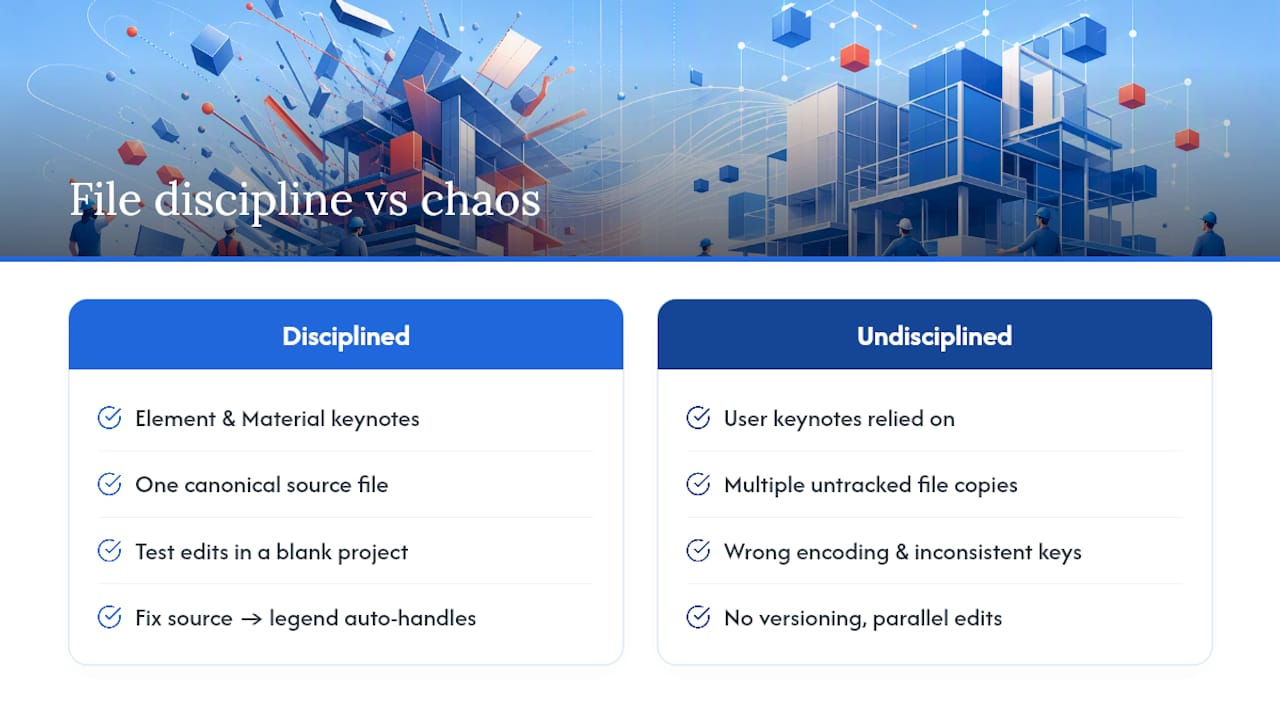
Conventional advice leans hard on formatting tips, leader visibility, font sizes, when the real return on effort sits in file discipline. A team that gets Element and Material keynotes doing the heavy lifting, keeps one canonical source file, and tests every edit in a blank project will spend a fraction of the time on annotation that a team relying on User keynotes and untracked file copies will spend.
If you take one thing from this, prioritize the file over the view. Fix the source, and the legend takes care of itself.
— Steve
Learn Revit Keynoting and Documentation With S15studio
S15studio’s introductory Revit course is the fastest way to build the annotation habits covered above, from creating your first keynote legend to structuring families with keynote parameters already assigned.

If you already know your way around Revit but want tighter control over schedules, tags, and legend formatting, the beginner-to-intermediate course picks up right where this article leaves off. And for teams managing shared keynote files across multiple users, the worksharing course covers exactly the version control and file coordination habits that keep a keynote system from falling apart on a live project. Start with the introductory course if you’re still finding your footing in the interface, then move up as your projects get more complex.
Recommended
Comments