
Avoid 1–15 Minute Unlock Delays with AutoCAD Sheet Set Manager


The AutoCAD Sheet Set Manager organizes every layout across a project into one navigable file, standardizes title blocks and page setups, and lets a team publish, revise, and track dozens or hundreds of sheets without opening each drawing individually. It runs on a lightweight pointer file rather than the drawings themselves, which is exactly what makes team collaboration possible.
TL;DR:
Most projects benefit from organizing sheets by discipline, using the folder structure to mirror the subset hierarchy for easier navigation.
Creating sheet sets from existing drawings and setting templates at the subset level helps maintain consistency and reduces rework.
Lock indicators and the need to explicitly close a sheet set prevent unnecessary locking issues and improve collaboration efficiency.
Publishing sheets through cloud storage or shared drives requires verifying standardization, linked references, and proper naming to avoid missing elements in the final output.
Periodic renaming, renumbering, and resaving sheets keep project organization accurate without altering actual DWG filenames or layout data.
Table of Contents
What Is the Sheet Set Manager and How Does the DST File Work?
Every sheet set is built on a DST file, an XML document that points to layouts inside your DWG files rather than storing any geometry itself. Open the sheet set and AutoCAD reads that pointer network to display every sheet in one tree view, even though the actual drawings live scattered across your project folders.
That distinction between model files and sheet files matters more than it sounds; understanding it is key for choosing proper project delivery methods like design build vs design bid build. A model file holds your design geometry; a sheet is a specific layout tab published as one page. Autodesk’s own guidance on the Sheet Set Manager recommends putting one sheet per DWG file, and there’s a practical reason behind it beyond tidiness:
One sheet per DWG lets multiple team members open and edit different sheets simultaneously without file locks blocking each other.
Mixing several layouts into a single DWG forces everyone to fight over the same file lock.
The SSM palette itself organizes work into three tabs: Sheet List, Sheet Views, and Model Views, each giving a different lens on the same project.
How Do You Create or Import a Sheet Set?
Launch the Create Sheet Set wizard from the SSM palette or the SHEETSET command, and you’ll choose between starting from an example sheet set or importing existing drawings. Most working professionals pick the latter, since it builds a sheet set out of layouts you’ve already drawn instead of forcing you into a fresh template. The wizard for existing drawings lets you generate subsets automatically based on your folder structure, which saves a lot of manual dragging later.
Here’s the sequence that actually works on a real project:
Open the Create Sheet Set wizard and select “An example sheet set” or “Existing drawings.”
Point the wizard at your project folder and let it scan for layouts, choosing whether subsets should mirror your folder hierarchy.
Set the sheet storage location, ideally a shared network or cloud folder your whole team can reach.
Finish the wizard, then open a sample sheet to confirm the layout actually resolved and displays correctly.
Set your sheet creation template now, before anyone starts adding new sheets, so nothing gets created off-standard.
Skip that last checklist item and you’ll spend the next three weeks fixing sheets that used the wrong title block. Verify links first. It’s a five-minute check that saves hours of rework.
How Should You Organize Subsets Across a Project?
Structure subsets by discipline, not by arbitrary batches of drawings. Architectural, structural, mechanical, and civil each get their own subset, and when your project folder structure already separates disciplines, mirror that hierarchy directly in the sheet set tree so anyone new to the project can find their way in seconds.
Naming and numbering deserve real discipline of their own:
Let the SSM handle sheet numbering through its properties, not by embedding a number in the DWG filename.
Keep filenames descriptive but number neutral, since renumbering later shouldn’t mean renaming files.
Standardize the DWT and page setup per subset so every sheet in, say, the structural subset publishes with consistent line weights and plot styles.
Pro Tip: Set your sheet creation template at the subset level, not just the sheet set level. That way your structural subset can pull a different title block or layer standard than your architectural subset without any manual swapping.
How Does Collaboration Work in Connected Sheet Set Manager?
Autodesk retired the Web SSM in AutoCAD 2026 Update 1.1, replacing it with the Connected Sheet Set Manager, which opens DST files straight from Forma Data Management and supports real-time co-editing without routing through Desktop Connector. That direct connection cuts out a layer of sync friction that used to slow cloud teams down.
Lock indicators in the sheet tree tell you who’s working where:
A green dot generally signals the sheet is available for editing.
A red or locked icon means someone else has that sheet open right now.
Status refreshes as the SSM polls the session state, so don’t assume a stale icon reflects the current moment.
Here’s a detail that trips up more teams than it should: closing the sheet set with Close Sheet Set saves and unlocks the DST immediately, but simply exiting AutoCAD can delay that unlock by 1 to 15 minutes depending on session state. Train your team to close the sheet set explicitly every time, and you avoid the “why is this sheet locked when nobody’s even in it” conversation entirely.
How Do You Publish and Manage Sheet List Tables?
Insert a sheet list table straight from the SSM palette, choosing a custom table style so the table on your cover sheet matches your firm’s standards, then update it any time sheets get added or renamed. That single table replaces the manual index sheet most firms used to build by hand.
Publishing itself splits into two paths worth knowing apart:
Local publishing through Desktop Connector suits teams working off shared drives or synced folders.
Cloud publishing through Connected SSM skips the local sync step entirely, publishing straight from Forma Data Management.
Before either one, run a quick pre-publish pass: confirm DWT consistency across sheets, check that linked xrefs and images are reachable, and scan sheet names for typos.
Get that checklist wrong and you’ll publish a beautifully organized PDF set with three sheets missing their title blocks.
How Do You Rename, Renumber, and Maintain Sheets Over Time?
Sheets drift out of order as a project evolves, and the SSM handles the fix without you touching a single DWG filename.
Right-click any sheet in the tree to rename or renumber it, and the change propagates to title block fields automatically if they’re linked to sheet set fields.
Drag and drop sheets to reorder them or move them between subsets, and the numbering updates to match their new position.
Run Resave All Sheets periodically to refresh DST-linked data across every drawing, which also helps flush out compatibility quirks after an AutoCAD version update.
Know that the SSM writes cached “hints” into each DWG so it can find layouts faster next time. If a sheet won’t resolve, resaving clears stale hints.
What Advanced Sheet Set Automation Actually Saves Time?
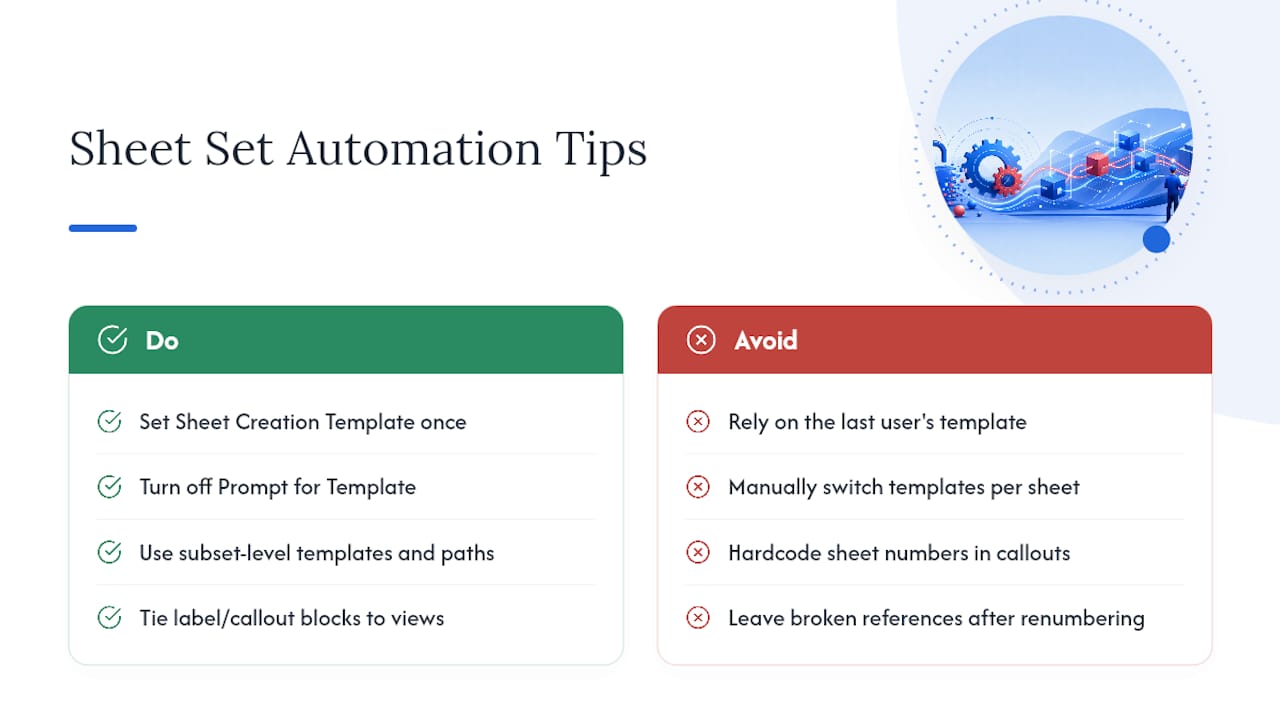
Set your Sheet Creation Template once, with Prompt for Template toggled off, and every new sheet pulls your company DWT automatically instead of defaulting to whatever the last person happened to use. That single setting, detailed in Autodesk’s own guide to creating new sheets, eliminates the single most common source of title block inconsistency across a sheet set.
Push it further at the subset level: different disciplines can point to different templates and storage paths without anyone remembering to switch manually. Pair that with label blocks and callout blocks tied to named model views, and your section markers and detail callouts stay consistent even as sheets get renumbered around them. Firms running dozens of sheets sometimes script repetitive sheet creation with AutoLISP, but even without scripting, correct template defaults handle most of the standardization work on their own.
Pro Tip: Build your callout blocks to reference sheet set fields instead of hardcoded sheet numbers. Renumber a sheet later and every callout pointing to it updates automatically, instead of leaving you to hunt down broken references by hand.
How Should a Team Roll Out Sheet Set Manager on a Real Project?
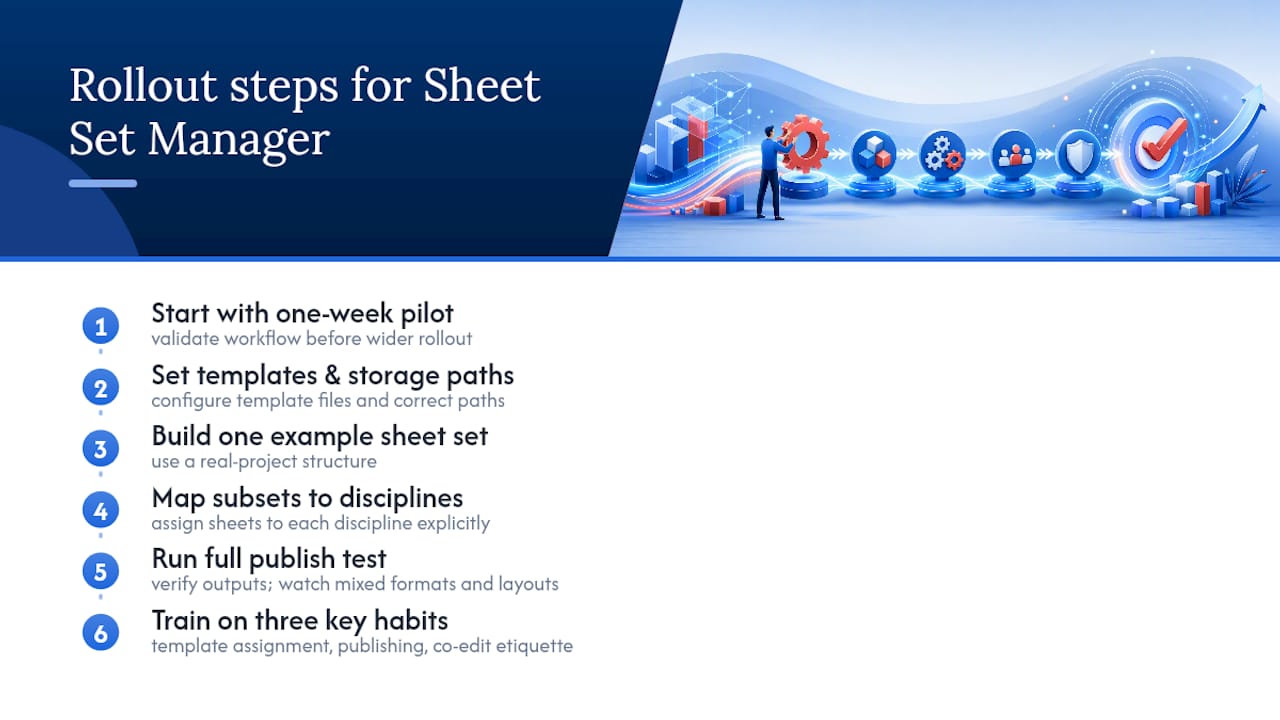
A one-week pilot works better than a company-wide mandate. Set up your template and storage paths, build one example sheet set, map subsets to disciplines, and run a full publish test before rolling it out further. Watch for mixed file formats and multiple layouts crammed into one DWG. Prioritize training on template assignment, publishing, and co-edit etiquette first. Those three habits prevent most of the headaches teams report in their first project setup.
Where Does Learning Sheet Set Manager Actually Click for Students?
Most learners master naming and subset structure first, then publishing, then collaboration etiquette last, since locking behavior only makes sense once you’ve felt a lock happen to you. Try the create wizard on one real project before touching a bigger job.
— Steve
Build Real Sheet Set Skills With Structured AutoCAD Training
Reading about the Create Sheet Set wizard gets you started, but nothing replaces working through a full project set with someone checking your subset structure, your template links, and your publish settings before something breaks in front of a client. A relevant AutoCAD course covers sheet organization, page setup standards, and worksharing habits using real project files rather than isolated exercises.

The course is project based and trainer led, designed to develop sheet set habits suitable for integration into a firm’s production pipeline. A related lesson on model space versus paper space provides additional information for managing these spaces separately across a project. Check the AutoCAD course page and see which module fits where you’re stuck right now.
Recommended
Comments