
Revit 2026 Specs for Irish AEC: .NET 8/10, 32 GB Baseline


Revit 2026 will install and run on Autodesk’s published minimum: 16 GB RAM, Windows 10 or 11, and a DirectX 11 capable GPU. For actual production work, target 32 GB RAM, a high single-core clock speed CPU, NVMe storage, and a dedicated GPU with 6 to 8+ GB VRAM. Confirm .NET 8 (or .NET 10 for versions 2026.5 and later) and Desktop Connector 16.x before rollout, and be aware the Accelerated Graphics Tech Preview wants stronger silicon than the entry spec provides.
TL;DR:
A workstation for Revit 2026 should have at least 32 GB of RAM, a high clock speed CPU, and a GPU with 6 to 8+ GB VRAM for daily production.
The GPU requirements are shifting toward higher VRAM and are not suitable for entry-level graphics, especially with the Accelerated Graphics Tech Preview.
Storage needs to include NVMe SSDs with a minimum of 100 GB of free temp space to handle large syncs and worksharing files efficiently.
For cloud worksharing, Desktop Connector 16.x or later and .NET 10 are mandatory starting from version 2026.5, along with internet access for licensing and updates.
Hardware specifications should match the model complexity and workload, not just job titles, and teams must also focus on proper model management and training to optimize hardware performance.
Table of Contents
Official Revit System Requirements 2026: Minimum, Value, and Performance Tiers
Autodesk splits its Revit 2026 system requirements into three tiers: Minimum, Value, and Performance, each with progressively higher memory and graphics specs as model complexity increases. That structure matters more than a single spec sheet would, because a firm doing residential renovations has wildly different needs than one running federated hospital models with a dozen linked files.
Here’s how the tiers break down for the core hardware categories, drawn from the official Revit product requirements table:
Operating system: 64-bit Windows 11 or Windows 10 (supported builds only); no Home edition restrictions specified, but enterprise IT should confirm current build support.
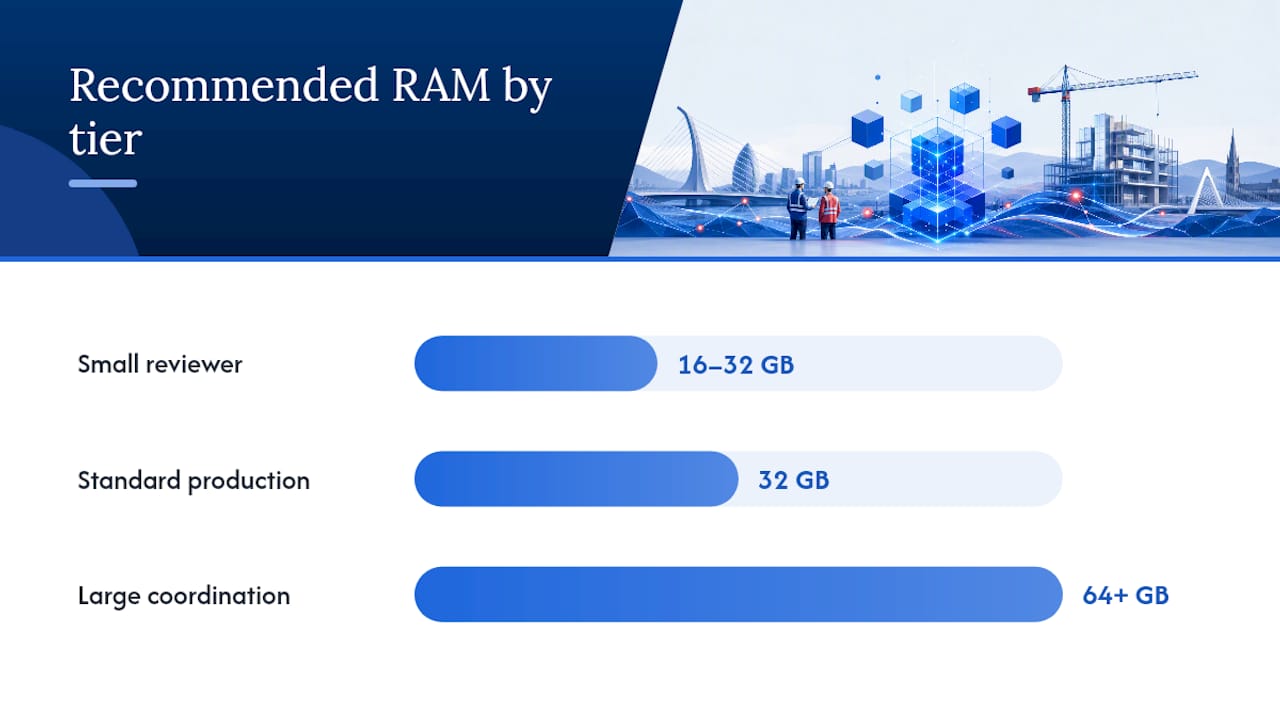
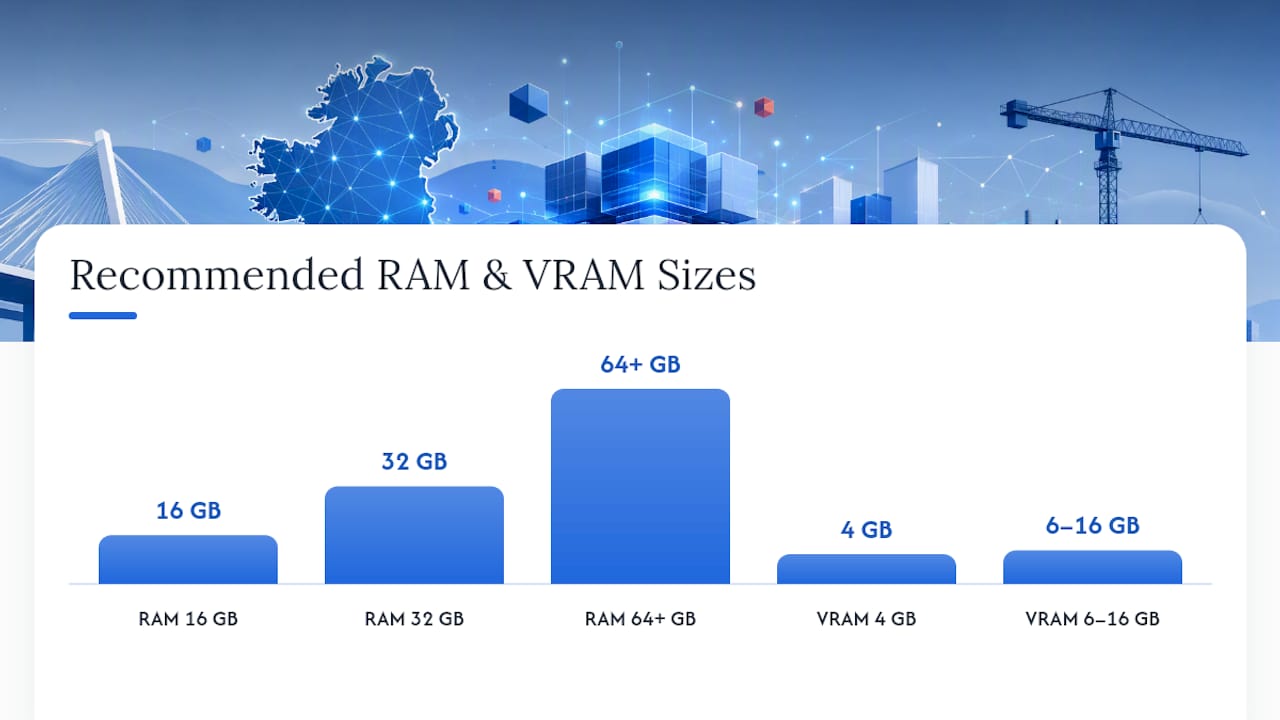
Memory: 16 GB minimum, 32 GB for the Value tier, 64 GB or more for Performance workloads with large or heavily linked models.
Graphics: DirectX 11 capable GPU across all tiers, with VRAM guidance rising from roughly 4 GB at minimum to 6 GB for Value and 8 GB or higher for Performance.
CPU: Autodesk doesn’t publish a strict minimum clock speed but recommends the highest single-core speed you can afford, since Revit’s core modeling engine is still largely single-threaded.
Disk space: Standard installation needs several gigabytes free, but temp file activity during large syncs and renders can consume far more.
.NET framework: .NET 8 is required for Revit 2026; releases from 2026.5 onward require .NET 10.
Desktop Connector: Version 16.x or later is mandatory for cloud worksharing with BIM 360 or Autodesk Construction Cloud.
The minimum tier tells you what will boot. The Value and Performance tiers tell you what will actually hold up under deadline pressure, which is the distinction that matters when you’re the one signing off on a hardware order.
What Workstation Should You Actually Buy for Revit 2026?
Official tiers are a starting point, not a purchase order. Translating them into real workstation builds means matching the spec to what your team actually models, links, and renders day to day.
Small model or reviewer workstation. A quad or six-core CPU with a decent clock speed, 16 to 32 GB RAM, and a 4 GB VRAM GPU handles light editing, markup, and single-discipline models under a few hundred megabytes. This suits a part-time contractor or a coordinator who mostly reviews rather than authors.
Standard production workstation. This is the realistic baseline for most architects and BIM managers: a high single-core clock CPU (think recent Intel Core or AMD Ryzen desktop chips), 32 GB RAM, NVMe SSD storage, and a GPU with 6 to 8 GB VRAM. Industry hardware guidance consistently points to 32 GB as the practical starting point for daily production work rather than a nice-to-have.
Large or coordination workstation. For federated models, heavy point clouds, or visualization-heavy work, plan for 64 GB or more RAM, a workstation-class or high-end consumer GPU with 12 to 16 GB VRAM, and a fast multi-core CPU to keep exports and clash detection moving alongside modeling.
Pro Tip: Don’t spec every seat identically. A junior drafter reviewing sheets doesn’t need the same rig as your BIM coordinator managing a 40-file federated model. Segment your fleet by role and you’ll cut procurement costs without sacrificing the people who actually need the horsepower.
Model complexity, not job title, should ultimately decide which tier a given seat gets.
Is Revit CPU-Heavy or GPU-Heavy? Understanding the Trade-offs
Revit is fundamentally CPU-bound for the tasks architects feel most: panning, orbiting, editing walls, and placing families. Autodesk’s own guidance is blunt about this, recommending the highest single-core clock speed you can buy, because the core modeling engine doesn’t spread that work across many cores efficiently.
Multi-core processors still earn their keep elsewhere. IFC exports, batch printing, rendering, and background sync operations all benefit from additional cores, so a CPU with strong single-core speed and a healthy core count (8 or more) is the practical sweet spot for most firms.
RAM tells a simpler story: 16 GB is survivable for small files, 32 GB is where most production teams should start, and 64 GB or more becomes worthwhile once you’re routinely opening large linked models. That’s not a hard rule so much as a threshold where you stop fighting Revit’s memory management on ordinary Tuesdays.
16 GB: acceptable only for small, single-discipline models.
32 GB: practical floor for daily architectural production.
64 GB+: recommended for large federated models and heavy point cloud or linked-file work.
GPU demands have shifted with 2026’s graphics pipeline changes. VRAM needs scale from around 4 GB at entry level up toward 8 GB or higher for smooth 3D navigation and visualization work.
The GPU shift to watch: the Accelerated Graphics Tech Preview is explicitly not recommended on entry-level GPUs, and teams enabling it should budget for 6 to 16 GB VRAM depending on display resolution and model size. This is a meaningful departure from older Revit releases where a modest GPU was rarely a bottleneck.
Storage, .NET, and Collaboration Requirements You Can’t Skip
NVMe SSD storage isn’t optional at this point. It’s the difference between a model that opens in seconds and one that stalls your morning. Beyond the install footprint, keep at least 100 GB of free temp space available for large syncs, worksharing central files, and render caches, since Revit generates temp files that can balloon well past what the install itself requires.
Software dependencies deserve equal attention before rollout:
.NET 8 is required to run Revit 2026 at all.
.NET 10 becomes mandatory starting with version 2026.5 and later releases.
Desktop Connector 16.x or later is required for cloud worksharing through BIM 360 or Autodesk Construction Cloud. Older Desktop Connector versions (15.8 and earlier) will disrupt collaboration and are unsupported.
Internet access is required for license registration and downloading installation prerequisites, even for otherwise offline desktop use.
Teams planning cloud collaboration should audit Desktop Connector versions across every machine before go-live, not after someone’s sync fails mid-deadline. S15studio’s worksharing course covers the workflow side of this if your team is new to cloud-based central files.
Can You Run Revit 2026 on a Laptop or Mac?
Laptops work for Revit, but thermal throttling under sustained load is the real risk, not raw spec sheets. A laptop with the right CPU and RAM on paper can still underperform a desktop because mobile chips downclock under heat, and thin chassis designs often can’t dissipate it fast enough during long modeling or rendering sessions.
Revit doesn’t run natively on macOS, so Mac users need Windows through virtualization. For Parallels Desktop on Apple silicon, allocate at least 16 GB of RAM to the Windows virtual machine and dedicate 4 GB or more of video memory when your Mac’s unified memory allows it.
Watch for thermal throttling on thin-and-light laptops under sustained modeling loads.
Allocate 16 GB+ RAM specifically to the Windows VM in Parallels, separate from macOS’s own needs.
For Revit Server or Citrix and VMware deployments, follow Autodesk’s official server and virtualization guidance on Windows Server versions and per-user memory tiers.
Quick Buying Checklist for IT and BIM Procurement Teams
Before you approve a purchase order or sign off on an existing fleet, run through this list:
Confirm the OS is a supported 64-bit Windows 10 or 11 build.
Verify .NET 8 is installed (or .NET 10 if deploying 2026.5 or later).
Check CPU single-core clock speed first, core count second.
Set RAM at 32 GB minimum for production seats, 64 GB for coordination roles.
Confirm GPU VRAM meets 6 to 8+ GB for anyone doing visualization work.
Verify NVMe storage with 100 GB+ free temp space.
Confirm Desktop Connector is version 16.x or later on every worksharing machine.
Pro Tip: Ask vendors directly whether a quoted machine meets Autodesk’s Value tier, not just the Minimum tier. Sales reps will happily sell you a minimum-spec box that “runs Revit” and technically does, right up until you open a real project file.
A red flag worth remembering: if a quoted workstation’s GPU has less than 4 GB VRAM or the CPU is a low-power mobile chip marketed for battery life, it will struggle the moment your models grow past a single building.
How S15studio Sees Hardware Shape Real Project Outcomes
Hardware specs only matter as much as the workflows built on top of them. In practice, most productivity loss on Revit projects has less to do with raw hardware failure and more to do with teams not knowing how to structure models, manage links, and worksharing settings to match the machines they actually have.
Common pitfalls include oversized families bloating file size, unpurged models dragging RAM usage upward, and worksharing setups that weren’t configured with Desktop Connector version compatibility in mind. Each of these compounds hardware limitations rather than causing them outright.
Right-sizing model files reduces RAM pressure before you ever touch a hardware order.
Understanding file size management prevents teams from blaming hardware for what’s actually a modeling habit problem.
Training on worksharing fundamentals early in onboarding cuts down on collaboration failures tied to Desktop Connector mismatches.
Buying the right machine is half the equation. Knowing how to work efficiently on it is the other half, and it’s often the half that gets skipped.
A Practitioner’s Take on Hardware and Training
Specs on a page don’t build anything. What actually determines whether a firm hits deadlines is whether the team behind the keyboard knows how to use the machine they’ve got. Every hardware upgrade I’ve seen firms make pays off faster when it’s paired with training that teaches people to model efficiently, manage worksharing correctly, and stop treating Revit like a black box. If you’re speccing new machines for 2026, pair that investment with structured Revit and AutoCAD training so the hardware spend actually shows up in project output, not just benchmark scores.
— Steve
Sources
For the authoritative word, go straight to Autodesk’s own documentation rather than third-party recaps, which can lag behind version updates.
FAQ
Is Revit CPU or GPU Heavy?
Revit leans CPU-heavy for core modeling tasks like editing and navigation, since Autodesk recommends prioritizing single-core clock speed. GPU demands have grown for visualization and the Accelerated Graphics Tech Preview, which needs 6 to 16 GB VRAM depending on workload.
What Are the Best Laptops for Revit in 2026?
Look for laptops with high single-core clock CPUs, 32 GB RAM, a GPU with 6 to 8+ GB VRAM, and strong thermal management to avoid throttling during sustained modeling sessions. Thin-and-light designs often sacrifice cooling for portability, which hurts sustained performance.
What Are the Minimum PC Requirements to Use Revit?
Autodesk’s published minimum for Revit 2026 is 16 GB RAM, 64-bit Windows 10 or 11, a DirectX 11 capable GPU, and .NET 8 (or .NET 10 for 2026.5 and later). This meets basic compatibility but isn’t recommended for sustained professional production work.
Is Revit RAM Heavy?
Yes, especially with larger or linked models. Autodesk’s minimum is 16 GB, but 32 GB is the practical starting point for daily production, and 64 GB or more is advisable for large federated models with heavy linked files.
Recommended
Comments