
Zero Minute Setup for AutoCAD Annotative Scaling: Trainer Tips

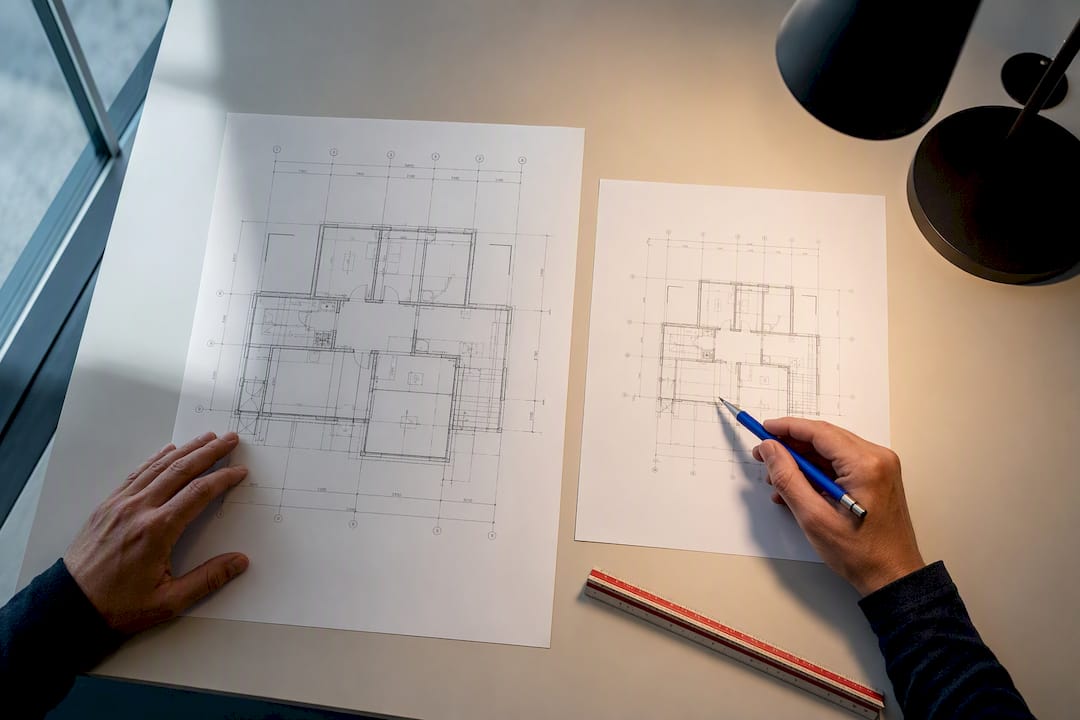
Annotative scaling keeps text, dimensions, and labels the same printed height no matter what scale a viewport uses, so a 3/32-inch note stays legible whether it sits in a 1/4-inch or 1/8-inch scale viewport. Turn on the Annotative property in your text or dimension style, or check the current annotation scale in the status bar, before you draft another note. AutoCAD (Autodesk’s flagship drafting platform) handles the resizing math automatically once that switch is flipped, and S15studio teaches this workflow as a core part of its AutoCAD training.
TL;DR:
Annotative objects automatically resize based on the active annotation scale, requiring proper style setup and scale assignments before drafting.
Creating or modifying annotative styles in the style manager and setting the correct scale beforehand ensures consistent behavior across objects and viewports.
Managing annotation scales involves adding, deleting, or editing scales regularly, especially when project scales change or new sheets are added.
Common issues like missing or mis-sized annotative text often result from absent scale assignments or incorrect style settings, which can be fixed with simple checks and the REGEN command.
Building annotative styles into templates and training teams on proper scale management reduces errors, saves time, and improves drawing consistency at every production stage.
Table of Contents
What Does AutoCAD Annotation Scale Actually Control?
An annotative object is any text, dimension, hatch, or block that carries a built-in scale factor tied to the drawing’s annotation scale setting. You define the height you want printed on paper, once, and AutoCAD recalculates the model space size behind the scenes for every scale you assign.
That single setting is what makes annotative objects resize automatically based on whatever annotation scale is active in model space or a layout viewport. Create the object in model space, and it displays at a size proportional to whichever scale you have current. Create it directly in a paper space viewport, and AutoCAD ties it to that viewport’s scale by default.
Before annotative objects existed, drafters handled multi-scale sheets by duplicating text at different sizes or freezing layers per viewport. That approach worked, but it doubled the object count and multiplied the chances of someone editing one copy and forgetting the other three. Autodesk’s own documentation frames annotative scaling as a direct replacement for that manual duplication method.
A few practical distinctions worth locking in:
Model space annotative objects respond to the annotation scale shown on the status bar while you’re working in model space.
Paper space viewport objects respond to that specific viewport’s assigned scale, not the model space setting.
One annotative object can hold multiple scale representations at once, which is what lets a single dimension appear correctly in three different viewports without three separate copies.
How Do You Create Annotative Text, Dimensions, and Blocks?
Getting this right starts with the style, not the object. Skip that order and you’ll spend the next hour fixing text that refuses to behave.
Open the Text Style or Dimension Style Manager, select the style you use for general notes or dimensions, and check the Annotative box in the style definition.
Set your current annotation scale on the status bar before placing any text or dimensions. AutoCAD stamps new annotative objects with whatever scale is active at creation time.
Draft your text, dimension, or leader as normal. AutoCAD automatically sizes it for the current scale and tags it as annotative.
For blocks, open the Block Definition dialog and check Annotative there too. Insert the block, then switch through your layout viewport scales to confirm it resizes instead of staying fixed.
For anything you drew before turning on annotative properties, select the object, open Properties, and add scales through the Annotative Object Scale dialog (the “…” button next to Annotation Scale in the Properties palette).
That last step matters more than people expect. Existing dimension styles and text styles need Annotative set to Yes in Properties before the object scale dialog will do anything useful, so check that field first if the dialog looks empty.
Pro Tip: Build your annotative text and dimension styles directly into your drawing template, with the scale already set to whatever you use most often. It turns a five-minute setup into a zero-minute one for every new project.
Dimension style settings interact with print output in ways that trip up even experienced drafters. Our guide to AutoCAD dimension style types covers the settings that matter most once you move past the basics.
Managing Annotation Scales and Visibility
Adding and removing scales from an object is not a one-time task. Projects change scale requirements as sheets get added, and objects created early in a project often need scales bolted on later.
Right click the object, choose Annotative Object Scale, then Add/Delete Scales to Object, and pick which viewport scales it should display in. Removing a scale that’s no longer needed keeps the object’s scale list clean, which matters more than it sounds. A cluttered scale list is one of the most common reasons annotative drawings feel sluggish on large sheets.
If a scale you need is missing from the list entirely, use the SCALELISTEDIT command. It lets you add missing annotation scales to the drawing’s master list or reset the list to Autodesk’s default set, which is handy after a scale list gets corrupted from years of copy pasting between drawings.
A few controls to keep in reach:
The Annotation Visibility toggle on the status bar shows or hides objects that don’t carry the current viewport’s scale, which is useful for auditing what’s actually assigned.
Automatically add scales to annotative objects when the annotation scale changes is an option worth turning on for solo drafters, since it removes a manual step every time you switch scales.
Run REGEN after adding or removing scales if a viewport doesn’t visually update right away. AutoCAD sometimes needs the nudge even though the data change is already saved.
Why Is My Annotative Text Missing or the Wrong Size?
Most annotative problems trace back to one of three causes, and none of them mean your drawing is corrupted.
Text or dimensions appear invisible in a viewport. This is almost always a missing scale assignment, not a deleted object. Annotative text disappears from a viewport when that viewport’s scale hasn’t been added to the object, and practitioners routinely mistake this for lost data. Select the object, open the Annotative Object Scale dialog, and add the viewport’s scale.
Objects print at the wrong size. Check the text or dimension style’s defined height first, then confirm the annotation scale active when the object was created. If you’re plotting straight from model space instead of a layout, you likely need manual scale math instead of annotative properties. Inverse scale calculations apply here: set DIMSCALE to the inverse of your drawing scale factor if you’re not using annotative dimensions at all.
A scale doesn’t show up anywhere in your dropdown. Run SCALELISTEDIT and add it manually, or restore the default list if scales seem to have vanished from every drawing you open.
Run through this order every time before you assume something’s broken:
Check the object’s Annotative property is set to Yes.
Check its assigned scale list in the Annotative Object Scale dialog.
Turn on Annotation Visibility to confirm what’s actually hidden versus missing.
Run REGEN to force the viewport to redraw.
That four-step sequence resolves the overwhelming majority of scaling complaints without touching a single object property beyond scale assignment. Our roundup of common AutoCAD drafting mistakes covers several adjacent issues that often show up alongside scaling problems, like layer overrides and viewport freeze states.
Field-Tested Best Practices for Annotation Scaling
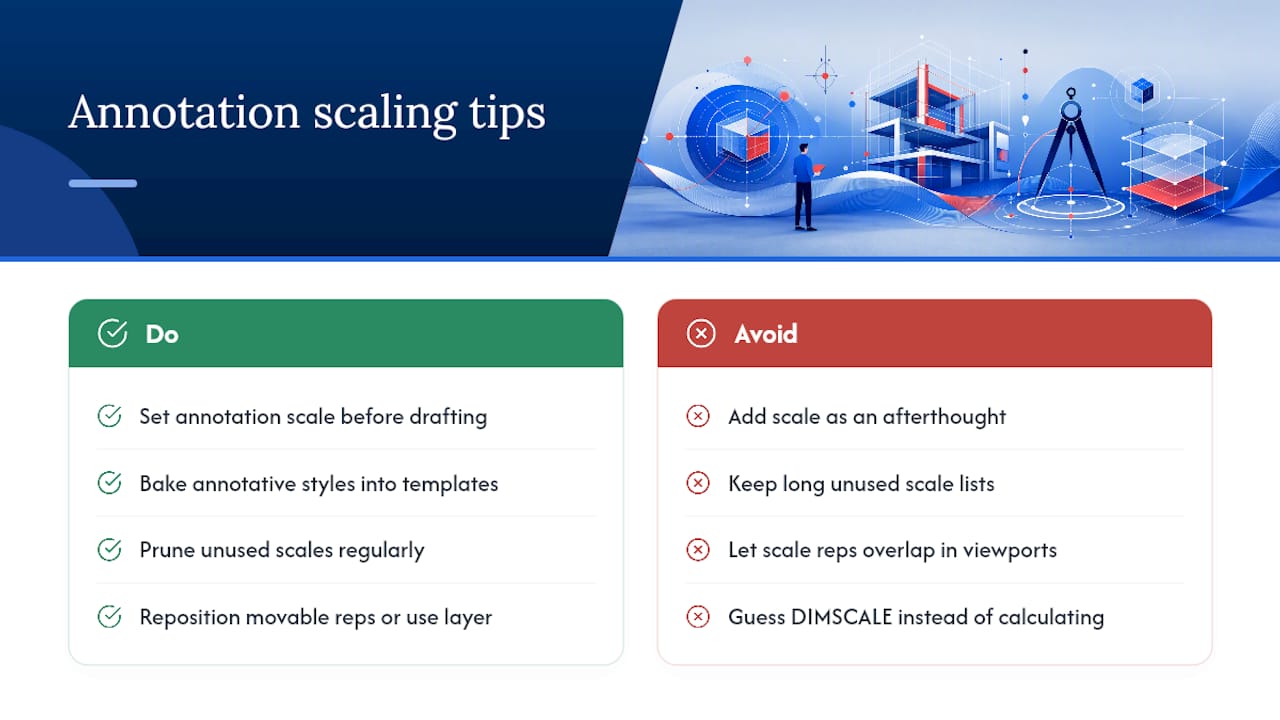
Set your annotation scale before you draft anything, not after. Drafters who add scale as an afterthought end up manually reassigning it to dozens of objects one at a time, and that habit is the single biggest time sink in annotative workflows. Bake annotative styles into your office template so every new drawing starts correctly configured.
Keep your annotation scale list short and deliberate. A drawing carrying twelve scales nobody uses anymore is a drawing where objects randomly go invisible because someone forgot to assign scale thirteen. Prune the list the same way you’d prune unused layers.
For dense viewports, reposition individual scale representations rather than letting them overlap. Each annotative object stores its scale representations independently, so a dimension crowded in a detail view can be nudged clear without touching how it displays anywhere else. Some offices keep movable annotation reps on a separate layer purely to control plot order.
If you’re plotting straight from model space, and you have a real reason to skip annotative properties, memorize the DIMSCALE and text height inverse relationship rather than guessing. Comparing the behavior side by side in model space versus paper space makes the tradeoffs obvious fast. When in doubt, create annotations in paper space instead. It sidesteps the inverse math entirely.
Pro Tip: If you inherit a drawing with dozens of stray annotation scales, run SCALELISTEDIT and reset to the default list before doing anything else. It’s faster than auditing objects one by one.
Why Annotative Scaling Is a Production Standard, Not a Convenience
Offices that skip annotative scaling pay for it in file size and rework. Duplicate text at three sizes triples the objects a plotter has to process, and it triples the places an edit can get missed. Annotative scaling collapses that into one object with multiple size representations, which cuts drafting errors at the source rather than catching them at review.
Consistency across a team comes from templates, not memory. Build the scale settings into your firm’s standard file once, train new hires on it, and you eliminate the guesswork that produces mismatched sheets late in a project.
Precise drawing conventions matter well beyond architecture, too. Even a set of timber cabin construction drawings depends on consistent, readable annotation at every scale a builder pulls up on site.
— Steve
Learn Annotative Scaling and Production Standards With Structured Training
Reading a guide gets you the commands. Building the muscle memory to set scale correctly on every drawing, every time, without thinking about it, takes repetition inside real projects. S15studio’s AutoCAD Training course is built around exactly that: project-based lessons that take you from basic drafting through production-level annotation standards, at a one-off price of 79 EUR with lifetime access to the material.

The course covers text and dimension styles, annotative blocks, viewport management, and the scale troubleshooting steps covered above, taught the way you’d actually use them on a working project rather than in isolated exercises. If you want the deeper program that carries you further into advanced AutoCAD workflows, the Mastering AutoCAD guide extends past the beginner to expert course with additional production techniques.
You get direct trainer support and a completion certificate either way, backed by S15studio’s money back guarantee. Check the AutoCAD Training course page for the full curriculum and enroll when you’re ready to stop guessing at scale settings.
Sources
FAQ
How Do I Fix Annotative Scaling in AutoCAD?
Select the object, open Properties, confirm Annotative is set to Yes, then use the Annotative Object Scale dialog to add the viewport’s scale. If the scale itself is missing from the list, run SCALELISTEDIT first.
Why Isn’t My Annotative Text Scaling Correctly in the Viewport?
The object almost always lacks that viewport’s assigned scale rather than having lost its data. Add the missing scale through the Annotative Object Scale dialog and run REGEN if the viewport doesn’t update.
How Do I Change the Scale in AutoCAD?
Click the annotation scale value on the status bar and select a new scale from the list, or type the scale directly if it isn’t listed yet. For dimensions plotted from model space without annotative properties, adjust DIMSCALE to the inverse of your drawing scale factor instead.
How Do I Turn Off Annotation Scale Behavior in AutoCAD?
Uncheck Annotative in the object’s Properties palette or in its text/dimension style definition, which reverts it to a fixed size that no longer resizes with viewport scale changes. This is rarely the right fix for a display problem. Missing scale assignment is the far more common cause.
Does S15studio’s AutoCAD Course Cover Annotative Scaling?
Yes. S15studio’s AutoCAD Training course covers annotative text, dimensions, and blocks alongside broader production drafting standards, priced at 79 EUR one-off with lifetime access.
Recommended
Comments