
AutoCAD for Architecture: What Students Must Know


AutoCAD for architecture is defined as a specialized CAD platform that uses intelligent architectural objects to produce building drawings faster and more accurately than standard drafting tools. The industry term for this specialized version is AutoCAD Architecture, and it ships as part of the AutoCAD 2027 toolset suite from Autodesk. It includes a library of over 8,800 intelligent objects such as walls, doors, and windows, and Autodesk reports productivity gains of up to 61% compared to standard AutoCAD drafting. For architecture students and professionals, understanding what AutoCAD Architecture does, and how it differs from the base product, is the first step toward building a productive drafting workflow.
What is AutoCAD for architecture and how does it work?
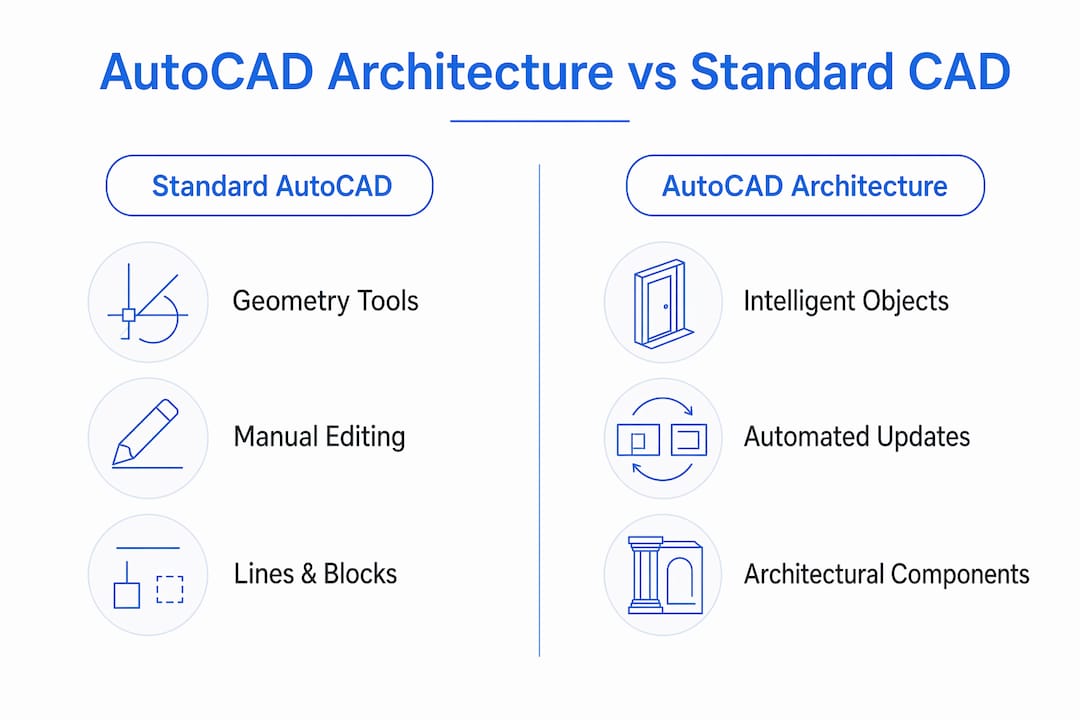
AutoCAD Architecture is an object-based workflow layer built on top of standard AutoCAD. Where standard AutoCAD treats every element as a line, arc, or block, AutoCAD Architecture replaces those with intelligent architectural entities that know what they are. A wall object understands it is a wall. It cleans up its own intersections, adjusts when you move a door, and updates linked elevations automatically.

That automatic behavior is the core productivity driver. Standard AutoCAD requires you to manually redraw every affected line when a design changes. AutoCAD Architecture propagates those changes across plans, elevations, and sections dynamically. For a project with multiple design iterations, that difference adds up fast.
The toolset is not a separate product you buy independently. It is included with an AutoCAD subscription, alongside other industry toolsets for MEP, civil, and electrical disciplines. That makes it accessible to any student or professional already paying for AutoCAD.
How does AutoCAD Architecture differ from standard AutoCAD?
The most visible difference is the object library. Standard AutoCAD gives you geometry tools. AutoCAD Architecture gives you building components with embedded behavior. A door object, for example, carries swing direction, width, height, and threshold data. Changing the width updates the door schedule automatically.
The workflow implications are significant. Architects using AutoCAD Architecture spend less time on repetitive drafting tasks and more time on design decisions. The object-based workflow replaces manual line drawing with managing intelligent entities that are dynamically linked to construction documents.
That said, AutoCAD Architecture has real limitations worth knowing before you commit to it.
Interoperability: Sharing files with consultants using standard AutoCAD or non-Autodesk tools can cause objects to explode into basic geometry, losing their intelligence.
Customization: Non-standard architectural details, like a custom curtain wall profile, often require reverting to manual line work because the object library does not cover every edge case.
Learning curve: The intelligent objects have complex embedded behaviors. Many users revert to standard lines when they encounter unfamiliar object styles, which eliminates the efficiency gains entirely.
Not a BIM tool: AutoCAD Architecture produces 2D drawings with limited 3D capability. It is not a substitute for full BIM authoring in Revit.
Pro Tip: Before starting a project in AutoCAD Architecture, confirm that all consultants can receive and read the file format correctly. Agreeing on a file exchange standard at project kickoff prevents costly translation errors later.
The comparison below summarizes the key differences at a glance.
Feature | Standard AutoCAD | AutoCAD Architecture |
Drawing elements | Lines, arcs, blocks | Intelligent walls, doors, windows |
Intersection cleanup | Manual | Automatic |
Schedule generation | Manual | Linked to objects |
Component library | Generic blocks | 8,800+ architectural objects |
BIM capability | None | Limited 3D, not full BIM |
What is AutoCAD DesignCenter and how does it support architecture?
AutoCAD DesignCenter is a palette that lets you drag and drop blocks, layers, and styles from external DWG files into your active drawing without fully opening those files. You access it with the ADCENTER command or the keyboard shortcut Ctrl+2. For architectural teams managing multiple projects, it is one of the most underused tools in the software.
The practical value goes well beyond pulling in a door block from another drawing. DesignCenter imports comprehensive drawing standards including text styles, dimension styles, layer structures, and templates. That means a junior drafter can apply the firm’s full CAD standard to a new file in seconds, without copying and pasting manually or risking inconsistencies.
Here is what DesignCenter handles in a typical architectural workflow:
Pulling wall styles and door styles from a firm’s master template file
Importing layer structures that match a project’s drawing standards
Reusing title block layouts and annotation styles across multiple sheet files
Accessing blocks from any DWG on your network without opening the source file
Pro Tip: Build a firm-standard DWG file that contains only your approved styles, layers, and blocks. Store it on a shared drive and use DesignCenter to pull from it on every new project. This single habit eliminates most drawing standard inconsistencies across a team.
What is AutoCAD geolocation and why does it matter for architects?
AutoCAD geolocation is a tool that assigns real-world geographic coordinates to a drawing, enabling integration with online maps, accurate sun-angle rendering, and alignment with GIS datasets. For site design and early-stage planning, it connects your drawing to the actual physical location of the project. You can overlay aerial imagery, check solar angles at specific times of year, and share coordinate data with civil engineers and landscape architects.
The sun study application alone justifies learning geolocation early. Assigning a correct geographic location lets AutoCAD calculate shadow angles for any date and time, which feeds directly into passive design decisions about window placement and shading.
However, geolocation carries a serious risk that many students overlook. Geolocation provides only a visual reference by default. Achieving real-world spatial accuracy requires defining a precise coordinate datum such as NAD83 or ETRS89. Without that step, the drawing looks aligned to the map but is not mathematically correct for GIS integration or survey coordination.
Relying on default geolocation settings without confirming project-specific coordinate datums causes alignment errors and interdisciplinary coordination problems. Civil engineers and surveyors work in defined coordinate systems. If your architectural drawing does not match theirs, overlaying the files produces errors that are expensive to fix mid-project.
Pro Tip: Always confirm the project coordinate system with the civil engineer before enabling geolocation. Ask for the datum and the project base point in writing. Set those values in AutoCAD before attaching any map data.
How do architects use AutoCAD Architecture in real projects?
AutoCAD Architecture fits into the architectural design process at the documentation and design development stages. The deliverables it produces most efficiently are floor plans, reflected ceiling plans, elevations, building sections, and detail drawings. These are the core drawings that make up a construction document set.
A typical workflow moves through these stages:
Schematic design: Use AutoCAD Architecture to produce quick floor plan layouts using wall objects. The intelligent objects let you test room arrangements without rebuilding geometry from scratch each time.
Design development: Add doors, windows, and stairs from the object library. Attach geolocation data for sun studies and site orientation checks.
Construction documents: Build out full drawing sets with annotated plans, sections, and details. Use DesignCenter to apply consistent layers, text styles, and title blocks across all sheets.
Coordination: Share DWG files with structural and MEP consultants. Confirm file format compatibility before sending to avoid object translation issues.
AutoCAD is not a full BIM authoring tool. Many architecture offices use AutoCAD Architecture for technical documentation while relying on Revit for full building modeling and interdisciplinary coordination. The two tools are complementary, not competing. Understanding when to use AutoCAD and Revit together is a core skill for any architect working in a modern office.
What are the most common challenges when learning AutoCAD Architecture?
The biggest trap for new users is abandoning intelligent objects when they become difficult to manage. Intelligent objects automatically clean up intersections and adapt to changes, but they require training to handle complex or custom details. When a wall style does not behave as expected, the instinct is to explode it into lines and draw manually. That approach works once, but it breaks the dynamic link and forces manual updates for every future change.
A second common problem is treating DesignCenter as only a block library. DesignCenter’s full potential lies in importing and applying comprehensive CAD standards, including text and dimension styles, not just geometry blocks. Most students never explore beyond the blocks panel.
Geolocation errors are the third major pitfall. Geolocation only provides a visual reference without precise datum definitions. Students who skip the datum setup produce drawings that look correct on screen but fail when overlaid with survey data. The fix is simple: always define the coordinate system before attaching map data.
The path through all three challenges is structured learning. Reading documentation helps, but working through real project exercises with feedback is what builds the habit of using these tools correctly from the start. If you are getting started with AutoCAD, building those habits early saves significant rework later in your career.
Key Takeaways
AutoCAD Architecture delivers up to 61% faster drafting through intelligent objects, but only when users invest in learning object styles, DesignCenter standards management, and correct geolocation setup.
Point | Details |
Intelligent objects drive speed | AutoCAD Architecture’s 8,800+ components automate cleanup and updates, cutting drafting time significantly. |
DesignCenter manages standards | Use DesignCenter to import layers, text styles, and templates, not just blocks, across every project file. |
Geolocation requires datum setup | Assign a coordinate datum like NAD83 before attaching map data to avoid costly alignment errors. |
AutoCAD and Revit are complementary | Use AutoCAD Architecture for documentation and Revit for full BIM modeling in modern practice. |
Object abandonment kills efficiency | Reverting to manual line work when objects get complex eliminates all productivity gains. |
Why I think most students learn AutoCAD Architecture the wrong way
Most architecture students learn AutoCAD by drawing lines. That is how it was taught for decades, and the habit sticks. When they encounter AutoCAD Architecture for the first time, they treat it the same way. They ignore the wall objects, skip the door library, and draft everything manually. Then they wonder why the software feels slow.
The shift that changes everything is learning to think in objects rather than geometry. A wall is not two parallel lines with a fill. It is a component with a style, a thickness, a material, and a behavior. When you place it correctly, the software does the cleanup work for you. That mental shift takes time, but once it clicks, the productivity difference is real.
I also see students skip geolocation entirely because it feels optional. It is not optional on any project that involves a site, a consultant, or a sun study. Getting comfortable with coordinate systems early in your training puts you ahead of most graduates entering the workforce.
The other thing worth saying plainly: AutoCAD Architecture is not Revit, and it was never meant to be. Students sometimes feel pressure to move to Revit immediately and treat AutoCAD as outdated. The reality in most offices is that both tools are in use. AutoCAD handles detail drawings and 2D documentation that Revit makes unnecessarily complex. Knowing both tools, and knowing when to use each, is what makes you genuinely useful on a project team.
— Steve
Build your AutoCAD Architecture skills with S15studio

S15studio offers structured, project-based training designed specifically for architects and architectural technicians who want to master AutoCAD Architecture and Revit. The courses cover everything from AutoCAD architecture basics and DesignCenter workflows to full BIM documentation in Revit, taught by Autodesk Certified Trainer Steve Fagan. If you are ready to move from understanding the concepts to applying them on real drawings, the AutoCAD and Revit training program at S15studio gives you a clear, structured path from beginner to certified professional. For those focused on mastering AutoCAD specifically, the AutoCAD mastery course covers the full toolset in depth.
FAQ
What is AutoCAD Architecture used for?
AutoCAD Architecture is used to create 2D architectural drawings including floor plans, elevations, sections, and detail drawings. It uses intelligent building objects that automate drafting tasks and update linked drawings when changes are made.
How does AutoCAD Architecture differ from standard AutoCAD?
Standard AutoCAD uses lines and blocks, while AutoCAD Architecture uses intelligent objects like walls, doors, and windows that carry embedded behavior and update automatically. Autodesk reports this approach delivers up to 61% faster drafting productivity.
What is AutoCAD DesignCenter?
AutoCAD DesignCenter is a palette for importing blocks, layers, text styles, and drawing standards from external DWG files into an active drawing. Access it with the ADCENTER command or Ctrl+2.
What is AutoCAD geolocation?
AutoCAD geolocation assigns real-world geographic coordinates to a drawing, enabling map overlays, sun-angle studies, and GIS integration. Accurate results require defining a specific coordinate datum such as NAD83 before attaching map data.
Is AutoCAD Architecture a BIM tool?
AutoCAD Architecture is not a full BIM authoring tool. Most architecture offices use it for 2D technical documentation while using Revit for full building information modeling and interdisciplinary coordination.
Recommended
Comments