
Revit File Size Management Explained for BIM Teams


Revit file size management is the practice of controlling model data to keep Autodesk Revit projects performing well throughout every phase of design and construction. Bloated files cause slow load times, frequent crashes, and collaboration breakdowns on workshared models. Industry best practices recommend keeping individual Revit files within 300 MB to 500 MB for optimal performance. Models that exceed this threshold consistently show lag, regeneration delays, and synchronization failures that cost teams hours every week. Understanding what drives file growth, and how to counter it, is the foundation of every effective BIM workflow.
What factors contribute most to Revit file size growth?
File bloat in Revit rarely comes from a single source. It accumulates from several compounding habits that go unchecked across a project’s lifespan.
Over-detailed families are the most common culprit. Families built with excessive geometry, nested components, or high-polygon 3D detail add weight that multiplies every time you place an instance. A single over-built door family placed 200 times across a large commercial project can add tens of megabytes to the model.

Imported CAD files create a permanent problem. Importing CAD files embeds heavy, sticky data that inflates file size permanently and cannot be fully removed. Linking CAD files instead keeps that data external and the model lighter. This distinction matters more than most teams realize, especially on projects that reference multiple survey drawings or consultant files.
Other major contributors include:
Unused families, materials, and line styles that accumulate from template files or copy-pasted elements from other projects
Excessive views and sheets, particularly 3D views with no crop region set, which force Revit to process the entire model geometry
Raster images embedded directly in the model rather than linked externally
In-place families, which are model-specific and cannot be shared or purged like standard families
Accumulated warnings, which signal geometry conflicts Revit must recalculate on every regeneration cycle
Each of these factors compounds the others. A model with 400 unused families, 80 uncropped 3D views, and a dozen imported DWG files will perform poorly even on high-end hardware.
Best practices to reduce and control Revit file size
Controlling file size requires consistent habits, not one-time fixes. The following practices, applied regularly, keep models within the recommended performance threshold.
Purge unused elements repeatedly. A single purge pass often misses nested materials and families. Purging unused content requires multiple passes to fully remove dependencies. Run Purge Unused at least three times consecutively until the count of removed items drops to zero.
Link CAD files, never import them. Linking keeps external data outside the Revit database. Importing embeds it permanently, and no cleanup tool fully reverses that. Make linking mandatory in your BIM Execution Plan.
Use the Compact File Save option. The Compact Save function reorganizes the database and reduces file size more effectively than purging alone. Use it during every Save As operation and at the end of each weekly maintenance session.
Detach and re-save the central model. Detaching and re-saving the central model rewrites the entire database, which removes accumulated overhead that standard saves leave behind. Schedule this monthly or before major project milestones.
Limit in-place families and arrays. In-place families cannot be purged and inflate the model permanently. Replace them with loadable families wherever possible. Large arrays of complex elements also increase regeneration time significantly.
Manage 3D views and crop regions. Every uncropped 3D view forces Revit to process the full model. Set crop regions on all views, and delete any view not actively used for documentation or coordination.
Audit and maintain weekly. Weekly model maintenance, including auditing, compacting, and purging, can reduce a model’s file size by nearly half without losing data. Schedule this when no other team members are in the central model.
Pro Tip: Run the Audit option from the Open dialog box, not just from within an active session. Auditing on open catches database errors that in-session audits sometimes miss.
How does hardware impact managing Revit file sizes and project performance?
File size management and hardware work together. Even a well-maintained model will perform poorly on underpowered hardware, and even powerful hardware cannot compensate for a severely bloated file.
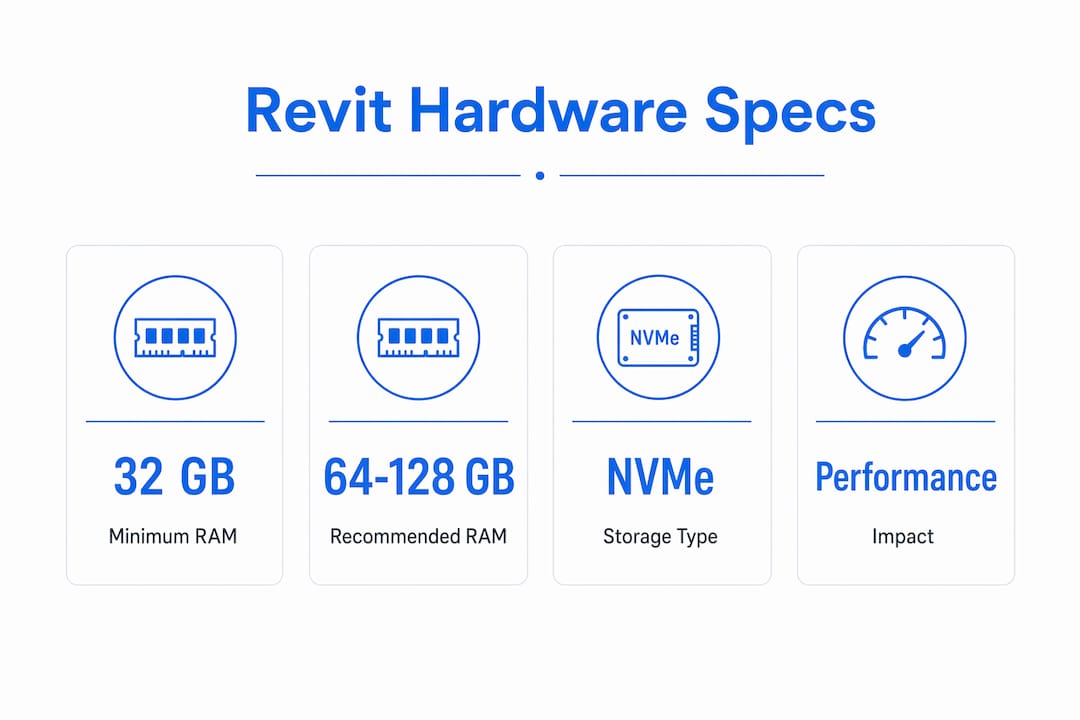
For Revit 2026, 32 GB RAM is the minimum; 64 GB to 128 GB is recommended for complex projects. That gap matters. A 400 MB model on a 32 GB machine will stall during synchronization. The same model on a 64 GB machine with a fast processor opens and syncs without issue.
Storage type has a direct impact on load times. SSDs, particularly NVMe drives, reduce model open times and synchronization delays compared to traditional hard drives. For teams working on local copies of a workshared model, NVMe storage is the single most cost-effective hardware upgrade available.
Hardware component | Minimum (Revit 2026) | Recommended (complex projects) |
RAM | 32 GB | 64 GB–128 GB |
Storage | SSD | NVMe SSD |
CPU | Multi-core, 3.0 GHz+ | Multi-core, 3.6 GHz+ |
GPU | DirectX 11 capable | 4 GB VRAM dedicated |
Pro Tip: If your team is deciding between upgrading RAM or storage, prioritize RAM first for large workshared models. Storage speed helps with load times; RAM determines whether the model can stay open and functional during complex operations.
File size alone does not dictate performance. Closing unnecessary worksets, limiting complex views, and reducing warnings often deliver greater performance gains than hardware upgrades. Think of hardware as the ceiling and file management as the floor. You need both.
For professionals considering hardware alongside software setup, understanding Revit’s system requirements in different environments is worth reviewing before making purchasing decisions.
What are advanced techniques for managing large Revit projects?
Large projects require more than routine purging. They need structural decisions made early in the project setup that prevent file growth from becoming unmanageable.
Federated models and discipline splitting
The federated model approach splits a project into separate Revit files by discipline or physical zone, then links them together in a coordination model. Splitting projects by discipline or zone reduces the processing load on each individual file and prevents crashes caused by a single oversized model. A 1.2 GB combined model split into four 300 MB discipline files performs dramatically better for every team member working in it.
Revit worksets give teams control over what geometry loads into memory at any given time. Closing worksets for disciplines or zones not relevant to a current task reduces the active model footprint significantly. This is one of the most underused performance tools available in workshared projects.
Warnings management
Revit warnings are not cosmetic. Excess warnings cause significant lag because Revit recalculates conflicting geometry on every regeneration. A model with 2,000 unresolved warnings will feel sluggish even at 200 MB. Prioritize resolving warnings related to overlapping walls, duplicate elements, and room separation lines. These three categories generate the most recalculation overhead.
Linked model management
Linked models should be unloaded when not actively needed for coordination. Keeping all discipline links loaded at all times multiplies the memory demand without adding workflow value. Set a team protocol: load links only for coordination sessions, then unload them during active modeling work.
The comparison below shows how these approaches differ in practice:
Approach | Best for | Key benefit |
Single large model | Small projects under 200 MB | Simpler setup, fewer links to manage |
Federated linked models | Projects over 300 MB | Each file stays within performance threshold |
Workset-based loading | Workshared teams on large projects | Controls active memory without splitting files |
Unloading non-essential links | All workshared projects | Reduces memory load during active modeling |
Model optimization is a continuous strategy that belongs inside your BIM Execution Plan, not a task you run when performance becomes unbearable. Teams that treat file hygiene as routine maintenance avoid the emergency cleanup sessions that derail project schedules.
Key takeaways
Effective Revit file size management combines regular maintenance, disciplined modeling habits, and the right project structure from day one.
Point | Details |
Keep files under 500 MB | Split models into federated linked files when a single file exceeds 300–500 MB. |
Purge multiple times | Run Purge Unused at least three passes to remove nested families and materials fully. |
Link, never import, CAD files | Importing CAD embeds permanent data bloat that no cleanup tool can fully reverse. |
Maintain weekly | Weekly auditing, compacting, and purging can cut file size by nearly half without data loss. |
Manage warnings actively | Unresolved warnings cause constant geometry recalculation and slow the model more than raw file size does. |
Why file hygiene is the BIM habit most teams skip
I have worked with design teams at every level, from solo practitioners running small residential projects to large practices managing multi-discipline commercial builds. The pattern I see most consistently is this: file management gets treated as a reactive task. Teams only address it when the model becomes painful to use.
That is the wrong approach, and it costs real time. A model that has been neglected for three months of active design work can take a full day to clean up properly. The same model, maintained weekly, never reaches that state. The discipline required is minimal. The payoff is significant.
The misconception I hear most often is that file size is the whole story. It is not. I have seen 600 MB models that perform better than 200 MB models because the larger file had clean geometry, resolved warnings, and properly managed worksets. The number on the file size indicator is a symptom, not the diagnosis. You have to look at warnings, view count, family complexity, and workset configuration together.
The other thing worth saying directly: this is not advanced BIM knowledge. Purging, linking instead of importing, and running a weekly compact save are basic habits. The reason they are not universal is that no one builds them into the project workflow from the start. If you are a BIM manager, put these steps in your project template and your BIM Execution Plan. If you are a design professional, make them part of your Friday routine. The teams that do this consistently deliver projects with fewer crashes, faster synchronization, and less stress at every deadline.
— Steve
Build the skills to manage Revit models with confidence
Understanding the principles behind Revit file management is one thing. Applying them correctly across a live project is another. S15studio’s Revit training courses are built by Autodesk Certified Trainer Steve Fagan specifically for architects, BIM managers, and design professionals who need practical, project-based skills they can use immediately.

From the beginner introduction course that covers essential workflows and file awareness, to the advanced master class that goes deep on model hygiene, performance tuning, and federated model strategies, S15studio has a course matched to where you are right now. If worksharing and collaborative file management are your priority, the dedicated Revit worksharing course covers exactly that. Every course is practical, structured, and built around real project scenarios.
FAQ
What is the recommended Revit file size for good performance?
Industry best practices recommend keeping individual Revit files within 300 MB to 500 MB. Models larger than 500 MB should be split into federated linked files by discipline or zone.
How often should you purge and audit a Revit model?
Weekly maintenance, including auditing, purging, and compact saving, is the recommended frequency. Schedule it when no other users are in the central model to avoid conflicts.
Does linking CAD files really make a difference to file size?
Linking CAD files keeps external data outside the Revit database, while importing embeds it permanently. Imported CAD data inflates file size and cannot be fully removed, making linking the only safe option.
What is the Compact File Save option in Revit?
Compact File Save reorganizes the Revit database during a Save As operation, reducing file size more effectively than purging alone. Use it during weekly maintenance and before sharing the model with consultants.
How much RAM does Revit 2026 require for large projects?
Revit 2026 requires a minimum of 32 GB RAM. For complex or large projects, 64 GB to 128 GB is recommended to avoid performance issues during synchronization and model regeneration.
Recommended
Comments